Category: Hardware

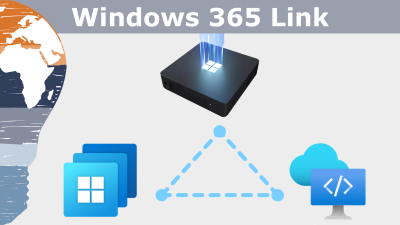
  • Windows 365 Link + Azure Dev Box

    Windows 365 Link + Azure Dev Box


    Windows 365 Link + Azure Dev Box


    Microsoft reveals a new vision for desktop computing and coding. What does it mean for the future of workplace technology?

    #Microsoft used day 1 of its Ignite event to reveal a compact ARM-powered desktop PC calles Windows 365 Link. Imagine what this means, if we put this together with the powerful Azure Dev Box solution launched in 2023. 

    As Mr. Microsoft, I’m excited about these products and keen to see how they will influence our use of tech for work. 


    🖥️ ✨ A new take on the desktop experience


    Microsoft’s new compact desktop PC combines cutting-edge ARM architecture with the power of the Cloud. It’s called Windows 365 Link for a reason. This device only runs with a Windows 365 subscription and connects directly to a Windows 10 or Windows 11 Virtual Desktop hosted on Azure. 

    Bearing a passing resemblance to recent Mac Minis, this compact computer aims to deliver enterprise-grade performance in a form factor that fits anywhere – from the home office, to the boardroom, and everywhere in between. The ARM architecture promises optimized energy efficiency and enough local performance to satisfy most people’s needs.

    Although the idea of ‘thin clients’ powered from the cloud is not new, The Windows 365 Link could be a compelling option for organizations that are invested in Microsoft technology and are keen to leverage the company’s growing suite of AI tools. 

    The format could also provide intriguing hotdesk options for those organizations that accommodate a mix of on-site, remote and hybrid working arrangements. 


    🌐 Azure Dev Box: A Developer’s playground in the cloud


    Imagine a development environment available on demand, tailored to your needs, and scalable with just a few clicks. 

    The re-introduced Azure Dev Box makes this a reality by providing:

    Pre-configured environments for development, testing, and deployment

    – Cloud-powered performance for demanding workloads without the need to procure powerful hardware on site

    – Streamlined management with integration into existing tools like Intune and Azure Active Directory

    In short, the Azure Dev Box enables developers to focus on coding without worrying about setup or resource constraints. It’s a big deal for individuals and teams whose business is focused on building digital products. 


    💻 Why I think this Matters …


    These reveals are about more than hardware and software. With these solutions, organizations can empower their users and dramatically simplify the process of provisioning workplace tech. 

    Combined with a commitment to rolling out powerful AI-powered solutions, it’s clear that Microsoft is focusing on reinventing the workplace tech environment – improving worker productivity, while providing their employers with unprecedented levels of flexibility and scalability. 

    Read more about it: Windows 365 Link: Cloud PC Device, Simple and Secure

    👉 Want More?

    Check out more Microsoft Teams tips, Power Platform hacks, and Excel power tricks right here on zabu.cloud. Because geeky productivity is the best kind.

    Stay clever. Stay curious.
    Your Mr. Microsoft,
    Uwe Zabel

  • Uncover – Custom Logos on Your MacBook

    Uncover – Custom Logos on Your MacBook


    Uncover – Custom Logos on Your MacBook

    Instead of Apple’s Standard Fruit


    Let’s be real: Apple makes beautifully designed products, no doubt about that. They’re sleek, minimalistic, and instantly recognizable from a mile away. But here’s the thing. Sometimes, being one of millions with that glowing bitten apple just isn’t enough. Sometimes, you crave something more. Something uniquely you. Something to reflect your inner geek, your brand, or simply your own quirky personality.

    Enter Uncover.

    (more…)

    Uncover – Custom Logos on Your MacBook

    Instead of Apple’s Standard Fruit


    Let’s be real: Apple makes beautifully designed products, no doubt about that. They’re sleek, minimalistic, and instantly recognizable from a mile away. But here’s the thing. Sometimes, being one of millions with that glowing bitten apple just isn’t enough. Sometimes, you crave something more. Something uniquely you. Something to reflect your inner geek, your brand, or simply your own quirky personality.

    Enter Uncover.

    (more…)
  • Fujitsu Lifebook P727 – Business-Class Power In A Portable Package

    Fujitsu Lifebook P727 – Business-Class Power In A Portable Package


    Fujitsu Lifebook P727

    Business-Class Power In A Portable Package


    Back in December 2017, I received an unexpected surprise: Microsoft selected me to be a product tester for the Fujitsu LIFEBOOK P727. 🧑‍🔬💻


    Moments like these don’t happen every day and as a die-hard tech enthusiast, I was thrilled. Within days, the box arrived. Inside: the convertible LIFEBOOK P727, a USB-C docking station, and the Fujitsu stylus, complete with spare nibs. Everything I needed to give this device a real-world, business-class workout.

    Thanks again to the folks at Microsoft for this incredible opportunity!


    First Impressions: Not Your Average Plastic Brick


    Let’s get one thing straight: the P727 is no cheap plastic toy.
    This thing means business.
    The chassis feels solid, metallic, and premium. Clearly engineered with durability in mind. At just under 1.3kg, it strikes a sweet spot between portability and heft. It’s small enough to toss in a backpack, yet sturdy enough to feel like it belongs on the corner office desk.

    There was one aesthetic drawback: the surface shows fingerprints faster than you can say “Touch ID.” Fujitsu included a microfiber cloth, but still it’s worth noting.


    All the Ports, All the Flexibility: Meet the USB-C Port Replicator


    No dongles. No compromises.
    The included USB-C Port Replicator is a dream for hybrid professionals. It supports:

    • VGA, HDMI and DisplayPort
    • Three USB-A ports and two USB-C
    • Gigabit LAN
    • Combo audio jack
    • Pass-through charging via USB-C

    It makes setting up your mobile workstation a plug-and-play affair. However, I was a bit disappointed to find that a second power cable wasn’t included. So you’ll have to swap your main power supply between the laptop and docking station unless you purchase another one.

    Port Replicator
    Port Replicator

    Security That Scans Beneath the Surface: Fujitsu PalmSecure


    Here’s something you don’t see every day: vein pattern recognition.
    Fujitsu’s PalmSecure feature scans the unique pattern of your veins. Arguably more secure than facial recognition or PIN codes. ✋🔐

    Setup was quick (despite the software’s slightly outdated UI), and using it feels natural. However, Windows had a short memory and occasionally reverted to password login at boot. A minor frustration in an otherwise excellent security feature.


    Windows 10 Pro + Microsoft Intune = Enterprise Heaven


    As a Microsoft Cloud consultant, my work life revolves around devices that just work with M365, Azure AD, and Intune.
    This Lifebook, running Windows 10 Pro (Fall Creators Update, Build 16299), nailed that brief.

    All my policies deployed cleanly. Conditional Access worked. Office 365 ProPlus was snappy and reliable. Whether managing devices or collaborating on SharePoint, it performed like a champ.


    AI Assistant On Board: Cortana and Windows Ink at Your Service


    Cortana reminded me when to leave for meetings and gave me hints about the actual traffic.
    Windows Ink helped annotate PDFs and screenshots as well as brainstorm ideas on the fly.
    Both made me more productive and more organized.

    Only gripe? Windows Ink didn’t sync nicely with OneNote 2016 at the time. It worked, but not without a workaround.


    Convertible Design That Just Works


    Most of the time, I am working on this machine in the standard Laptop mode. But switching to tablet mode is effortless. Fold the screen back, and voilà, Windows prompts you to go full touch. Better yet, you can automate the transition. And the keyboard? Deactivates instantly when flipped. This way it is preventing those dreaded accidental key presses.

    One minor quirk: it wasn’t always clear at what angle the switch triggered. But it never failed to function.


    Typing Experience: Surprisingly Premium


    Typing on the P727 is a pure pleasure.
    The keyboard spacing is generous for such a compact form factor, with responsive, tactile feedback. It just feels great to use it. And the anti-glare screen? A lifesaver under office lighting.

    Unfortunately, German winter didn’t allow me to test in direct sunlight. But in every indoor scenario, brightness and color accuracy were excellent.

    blank

    The Fujitsu Digitizer Pen: Close, but No Surface Pen


    The included stylus supports pressure sensitivity and palm rejection. These are two must-haves for digital inking. The writing experience is smooth, and the pen glides across the screen effortlessly.

    That said, the button layout felt awkward. I missed having an eraser-style button on the top (like Microsoft’s Surface Pen). But in hand, it’s balanced and effective for note-taking, sketching, or annotating documents.


    Final Verdict: Built for Road Warriors and Power Users Alike


    The LIFEBOOK P727 fits in almost any bag and into any workstyle.
    On flights, at client meetings, or in coffee shops, it never let me down. The battery lasts long enough for a full day’s work. The stylus docks neatly in the chassis. And its build quality and connectivity are exactly what you’d expect at this price point.

    My only wish? A better touchpad and a smoother biometric login process.

    Still, with Windows 10 Pro and Office 365 onboard, this compact convertible earns a solid:

    👉 8 out of 10 for productivity

    Perfect for business travelers, consultants, and anyone who wants a reliable 2-in-1 workhorse with enterprise chops.

    Here you will find the whole Test on the Microsoft insiders Website

    Stay clever. Stay responsible. Stay scalable.
    Your Mr. Microsoft,
    Uwe Zabel


    🚀 Curious about the tools and tech that power modern consulting? Follow my journey on zabu.cloud—where cloud, AI, and business strategy converge.
    Or ping me directly—because building the future works better as a team.

  • IBM’s Mac Bet: Why Paying More Upfront Can Cost Less Overall

    IBM’s Mac Bet: Why Paying More Upfront Can Cost Less Overall


    IBM’s Mac Bet: Why Paying More Upfront Can Cost Less Overall


    Just now, a headline made a lot of CIOs raise an eyebrow: IBM claims each Mac saves around $270 compared to a comparable PC—despite the higher purchase price. The trigger wasn’t a marketing one-pager; it came from real operations data as IBM expanded its employee-choice program and began rolling out Macs at scale. Fewer help-desk tickets, simpler support, and strong user satisfaction tipped the total cost of ownership (TCO) math in Apple’s favor for certain roles. That’s a serious statement from a company with one of the biggest enterprise IT footprints on the planet.

    If you’re an enterprise decision-maker, this isn’t about brand wars. It’s about TCO, experience, and risk. And it’s a reminder that device strategy is changing—driven by mobile-first work, cloud services, and users who expect consumer-grade polish at work.


    What IBM Actually Said


    IBM is buying Macs in serious volume. According to public remarks summarized by MacLife, the company observed that employees on MacBooks, iMacs, and Mac Pros open fewer support cases than those on traditional Windows desktops—and that the downstream savings add up to roughly $270 per Mac over its lifecycle. In other words: the higher sticker price is offset by lower support effort and greater stability in day-to-day usage.

    A few dynamics sit behind that claim:

    • Fewer tickets per user: Streamlined OS updates, curated software catalogs, and modern management cut help-desk load.
    • Predictable lifecycle: Macs tend to hold value and endure multiple OS cycles, improving residual value and redeployment options.
    • Standardized provisioning: Imaging and policy-based setup (think 2015-era MDM tooling and DEP enrollment) reduce hands-on time.

    For a company at IBM’s scale, shaving minutes off provisioning and reducing the probability of tickets is not cosmetic—it’s financial hygiene.


    Choice, Cloud, And Consumer-Grade UX At Work


    Zoom out. This is the year employee choice moves from pilot to policy. SaaS adoption is accelerating, VPNs are being rethought, and line-of-business apps are showing up with mobile front doors. In that world, platform choice becomes a lever for productivity. If an analyst ships code in the morning and presents to a client in the afternoon, the right device is the one that minimizes friction and maximizes focus.

    From an IT perspective, the calculus includes:

    • Unified management maturity: Enterprises are experimenting with modern MDM enrollment, identity federation, and lighter-weight policy models—on both macOS and Windows.
    • Identity as the control plane: Azure Active Directory and other IdPs are centralizing access, so app reach matters more than the desktop logo.
    • App portfolio drift: Browser-first and Office 365 adoption (Word, Excel, PowerPoint, Outlook) mean productivity parity is easier across platforms than in years prior.

    The takeaway: when most of your daily work rides on identity, network, and the browser, device TCO has more room to show its face.


    Windows vs. Mac: A Realistic Enterprise POV


    Let’s be practical. Windows remains the enterprise default for deep legacy application portfolios, AD-joined estates, and specialized peripherals. Group Policies, SCCM images, and custom line-of-business software still matter a lot. At the same time, macOS can shine in roles where:

    • Cloud productivity dominates, with Office 365 and modern browsers doing the heavy lifting.
    • Developer and design workflows benefit from Unix tooling and creative suites that sing on macOS.
    • Field and sales teams value fast wake-to-work, long battery life, and a consistent UX that reduces training needs.

    The right answer is rarely “all of one.” It’s segmentation. Give finance their stable Windows stack if an add-in mandates it; give engineering and field teams the platform that trims support friction. Then measure ticket rates, reimage counts, and user satisfaction across both.


    What You Should Do Next (If You’re In IT)


    This is the moment to quantify your own TCO, not argue someone else’s. Create a small, well-instrumented device-choice program and track the boring—but telling—metrics over 6–12 months:

    • Time-to-productivity on day one (from box to business apps).
    • Help-desk tickets per 100 users, by category (device, app, identity).
    • Reimage/rebuild rates and average handling time.
    • User NPS and device satisfaction.
    • Residual value at refresh.

    Run those numbers alongside procurement costs, and the signal will emerge. If your curve looks like IBM’s—lower support volume and faster provisioning—then the “more expensive” device may be cheaper in real life.


    My Take: It’s Not About The Logo—It’s About Flow


    I’m “Mr. Microsoft,” so you might expect me to simply chant “Windows everywhere.” That’s not the playbook. The playbook is flow—removing friction between people and outcomes. Sometimes that’s a well-managed Windows 10 device humming with Office 365 and Azure AD. Sometimes it’s a Mac that just keeps out of the way while your cloud services do the heavy lifting. Either way, your identity, security, and management stack should make device choice safe—then let the numbers guide scale.

    If IBM can put hard savings behind that choice, it’s a signal for the rest of us: revisit your assumptions, measure ruthlessly, and optimize for real productivity, not procurement folklore.

    Stay clever. Stay responsible. Stay scalable.
    Your Mr. Microsoft,
    Uwe Zabel


    🚀 Curious how mobile, Mac, and Microsoft can work together? Follow my journey on zabu.cloud—where cloud, productivity, and business strategy converge.

    Or ping me directly—because building the future works better as a team.
  • Microsoft Continuum for Phones: How Windows 10 Turns Your Smartphone into a PC

    Microsoft Continuum for Phones: How Windows 10 Turns Your Smartphone into a PC


    Microsoft Continuum for Phones:
    How Windows 10 Turns Your Smartphone into a PC


    Turning your phone into a PC used to sound like sci-fi. At Build 2015, Microsoft walked on stage and said, in classic understatement: “Yeah, we can do that.” With Windows 10 and Continuum for phones, your smartphone suddenly looks a lot less like a handset and a lot more like a pocket-sized PC tower.

    As someone who lives in the Microsoft ecosystem all day, this moment feels like a glimpse into a future where the device in your pocket is the core of your digital life, and screens are just satellites you dock into.


    From phone screen to desktop display


    So what is Continuum for phones, exactly? In simple terms: you connect a Windows 10 smartphone to a larger display and peripherals, and the phone transforms its user interface into something that looks and behaves very much like a Windows 10 desktop.

    In the Build demo, Microsoft showed a Windows 10 phone plugged into an external screen, with a Bluetooth keyboard and mouse attached. The result looked strikingly familiar: a Start menu, taskbar, windowed apps, and the ability to move things around like on a regular PC, while the phone itself stayed fully functional.

    Under the hood, there is no secret second operating system. It is still the same Windows 10 on your phone. Universal apps simply adapt to the new form factor, scaling up gracefully from a small portrait screen to a full HD monitor. Your Outlook, Word, Excel, PowerPoint, and other universal apps become “desktop-style” without you changing the device.

    The phone is the computer. The screen is just that: a screen.


    One device, many experiences


    What excites me most is not the demo itself, but the mindset shift behind it. Continuum for phones is Microsoft taking the idea of “one platform, many devices” and applying it all the way down to your pocket.

    For years, we have lived with a split brain:

    • One device for email and Office on the go
    • Another device for “real work” at the desk
    • Maybe a tablet somewhere in between

    Continuum suggests a different model. You might carry a single Windows 10 phone and plug it into whatever is available:

    • A docking station at the office
    • A monitor in a hotel room
    • A screen and keyboard in a shared project space

    On each of these, you get a full-screen, keyboard-and-mouse experience powered by the same device. Your identity, your apps, your data, your policies – all travel with you. No more juggling multiple machines, VPN setups, and half-synced profiles.

    For IT, this is where it gets really interesting. If the phone becomes a secure, policy-driven workplace endpoint, backed by Azure Active Directory, Intune, and enterprise management, we are suddenly talking about new device strategies entirely. Fewer full-blown PCs, more smart phones that can “scale up” when you sit down at a desk.


    Why Continuum matters for app modernization


    From an application perspective, Continuum is also a very loud message to developers: if you build true universal Windows apps, you get new form factors for free.

    In the past, you often needed:

    • A separate desktop application
    • A separate phone app
    • Maybe a web app on top

    With Windows 10 and Universal Windows Platform (UWP), the idea is different: one codebase, adaptive UI, and multiple screen targets. Continuum for phones turns that into a compelling promise: build it once, run it on the phone, and when the phone connects to a larger display, your app automatically “grows up” into a desktop-like experience.

    That is pure gold for application modernization:

    • Legacy line-of-business apps can be reimagined as adaptive Windows 10 apps.
    • Field workers can carry a single device and still work on “desktop-grade” screens on-site.
    • Enterprises get a consistent experience, whether users are on a phone screen or a full monitor.

    For me as “Mr. Microsoft”, this is where Continuum moves from “cool demo” to “strategic pattern”: it pushes us towards building apps that care less about the device and more about the experience.


    Scenarios that suddenly become possible


    If you think beyond the keynote stage, a few real-world scenarios practically beg for Continuum. Imagine:

    • A consultant travels with only a Windows 10 phone. At the client site, they plug into a monitor and keyboard and run full presentations, email, and documents – all from the phone.
    • A frontline worker in a warehouse uses the phone as a handheld scanner and data capture device, then docks it in the office to process reports in Excel or a custom business app.
    • Small businesses provide just docking stations and screens at each desk, while employees bring a corporate-managed Windows 10 phone that becomes their only “PC”.

    Is this going to replace every desktop overnight? Of course not. Heavy workloads like 3D rendering, large-scale data analytics, or complex development environments will still favor full workstations for now. But for a huge portion of information workers, this “phone as PC when docked” model is a very real option.

    And that is exactly why Continuum feels like a glimpse into the future, not just another mobile feature.


    What about the limitations?


    We are still early in 2015, and Microsoft is clear that Continuum for phones is a work in progress. There are a few important caveats:

    • Only modern universal apps will support the responsive, desktop-style experience. Classic Win32 desktop applications will not magically run on your phone.
    • Hardware requirements matter. Phones will need enough CPU, GPU, and memory horsepower to drive external screens smoothly.
    • Enterprises must be ready with management, identity, and security concepts that support this convergence of phone and PC.

    But every new platform starts with limitations. The key is direction of travel, and here it is very clear: Windows 10 is not “one OS with many compromises”, but a unified platform that adapts to where you are and what you are using.

    From my point of view, Continuum for phones fits neatly into Microsoft’s bigger story:

    • A single Windows core powering phones, tablets, PCs, and even Xbox
    • A shared app model (UWP)
    • Cloud-powered identity and management via Azure AD and Intune
    • And now, a UI that dynamically adjusts all the way from palm-sized to full desktop

    Why this resonates with me


    I started my own journey in tech on very different machines: old Commodore systems, DOS, early versions of Windows. We moved from text-only interfaces to graphical desktops, from beige towers to sleek laptops, from local applications to cloud services.

    Continuum feels like the next chapter in that evolution: the PC shrinks into your pocket, but the experience expands onto whatever screen is closest. The phone is no longer “the little companion” – it is the core.

    As someone who helps clients modernize their applications and infrastructure, I see Continuum as an invitation:
    Design for mobility and productivity first, not for a specific device.
    Build apps that adapt, not apps that are locked to one form factor.
    Assume your users will want to move seamlessly between contexts – desk, meeting room, train, home – without losing their workspace.

    If Microsoft executes well on Continuum for phones, the line between “phone”, “tablet”, and “PC” could become less and less meaningful. In the end, it is all Windows 10 – just expressed through different screens and inputs.


    Conclusion


    Turning a Windows 10 phone into a PC-sized experience is more than a party trick at a developer conference. It is a signal that our computing world is changing again. Devices become docks. Apps become adaptive. And your “PC” might soon be wherever your phone is.

    Will Continuum for phones become the new normal, or remain a niche feature? In May 2015, we cannot know yet. But as a long-time Microsoft watcher and practitioner, I am convinced of one thing: this is exactly the kind of bold experiment we need to move beyond the old “one user, one PC” mindset.

    Stay clever. Stay mobile. Stay converged.
    Your Mr. Microsoft,
    Uwe Zabel.


    🚀 Curious how Windows 10 Continuum and device convergence could reshape your workplace? Follow my journey on Mr. Microsoft’s thoughts—where cloud, AI, and business strategy converge.
    Or ping me directly—because building the future works better as a team.
  • SanDisk’s 200GB microSD: Massive Storage, Tiny Card

    SanDisk’s 200GB microSD: Massive Storage, Tiny Card


    SanDisk’s 200GB microSD:
    Massive Storage, Tiny Card


    Remember when 32 GB felt roomy? Now, SanDisk just blew past “roomy” and landed squarely on “whoa.” The company unveiled a 200 GB microSD card—at launch the world’s highest-capacity microSD—and yes, it fits under your thumbnail. Availability is slated for Q2 2015 with an MSRP around $399.99 and rated read speeds up to 90 MB/s. That’s roughly 1,200 photos per minute shuttling from card to PC under ideal conditions. Not bad for something the size of a fingernail.


    Why It Matters If You’re In The Microsoft/Windows Ecosystem


    For Lumia users (640/640 XL, 830, 930, 1520) or anyone with a microSD-friendly 2-in-1, this tiny card behaves like a digital attic in your pocket. It changes how you capture, carry, and work with content when you’re offline or on shaky hotel Wi-Fi.

    What that looks like in practice:

    • Whole music libraries, offline maps for entire regions, and hours of 1080p footage—without storage anxiety.
    • Field teams capturing photos and video all day, then syncing to OneDrive when back on a solid connection.
    • Travelers ditching the “what do I delete?” routine on long trips.

    Specs Snapshot


    Specs set expectations and help you decide whether to jump early or wait for prices to settle. This is what SanDisk claimed at launch:

    • Capacity: 200 GB (microSDXC, UHS-I, Class 10)
    • Rated speed: Up to 90 MB/s read
    • Launch window: Q2 2015
    • MSRP: ~USD 399.99
    • Warranty: Up to 10-year limited (region dependent)
    San_Disk 200GB MicroSD Card

    Compatibility And Setup Essentials


    Before you buy, make sure your devices are ready. A quick compatibility check and a clean setup will save you headaches later.

    Key points to verify:

    • Device support: Your phone, tablet, camera, or 2-in-1 must support microSDXC (exFAT).
    • File system: Format in exFAT for files over 4 GB (useful for long 1080p clips).
    • App installs: Windows Phone 8.1 lets you move apps/games to SD, but media (photos/video/maps) benefits most.
    • Controller realities: “Up to 90 MB/s” is peak read; write speeds depend on the workload and device controller.

    How More Capacity Changes Your Behavior


    Big jumps in storage unlock new habits. When capacity stops being a constraint, you capture more, delete less, and treat your phone as a first-class camera and recorder. That’s not just convenience; it’s workflow. Creators record full interviews instead of snippets. Field technicians document entire sites instead of highlights. And commuters keep full playlists and video libraries offline for those no-signal moments.


    Real-World Uses That Shine


    Different roles benefit in different ways, but the common thread is uninterrupted capture and confident offline work.

    Examples worth calling out:

    • Mobile content studios shooting 1080p all week without nightly offloads.
    • Pro workflows with Office mobile + OneDrive and a large local cache to avoid sketchy conference Wi-Fi.
    • Windows devices in the field capturing site photos, inspection videos, and scanned docs without playing musical chairs with storage.

    Nerd Notes: File Sizes, Bitrates, And Headroom


    A bit of math helps you plan. With 200 GB, many common scenarios become “set it and forget it” rather than “constantly juggle files.”

    Rules of thumb:

    • 1080p video at ~20 Mbps consumes about 9 GB per hour—so 20+ hours before you need to offload.
    • RAW photos at ~25 MB each translate to roughly 8,000 shots.
    • Offline map data can land in the double-digit gigabytes; with 200 GB you simply download entire regions.

    Care, Authenticity, And Performance Tips


    Good habits protect performance and your data. A couple of simple checks up front go a long way.

    Practical hints:

    • Buy from reputable retailers; counterfeit cards are a thing.
    • Validate capacity/throughput on first use (Windows tools or third-party utilities).
    • Format in-device after first insert so controllers optimize allocation.
    • Keep a backup routine: removable ≠ invincible—sync to OneDrive or your NAS on good Wi-Fi.

    microSD And Cloud In 2015: Use Both


    Cloud is brilliant for backup, sharing, and collaboration, but local storage wins when you’re offline or capturing continuously. The smart setup is both: record locally to a fast, spacious microSD; then sync to OneDrive when you hit reliable connectivity. In 2015, that combo delivers resilience, speed, and peace of mind.


    Bottom Line


    In 2015, 200 GB on microSD isn’t just a spec bump—it’s a behavior shift. If your device supports microSDXC and your work or life is heavy on photos, video, music, and offline content, this card turns storage anxiety into a distant memory. Pricey at launch? Absolutely. But for creators, travelers, and power users, it’s a premium that pays in fewer “storage full” pop-ups and more moments captured without compromise.

    Stay clever. Stay responsible. Stay scalable.
    Your Mr. Microsoft,
    Uwe Zabel


    🚀 Curious how mobile and Microsoft go hand in hand?
    Follow my journey on zabu.cloud—where cloud, AI, and business strategy converge.
    Or ping me directly—because building the future works better as a team.

  • Microsoft Surprises the World with Surface

    Microsoft Surprises the World with Surface


    Microsoft Surprises the World with Surface


    On June 18, 2012, Microsoft dropped a bombshell at their press event — something no one quite saw coming. Best known for its software legacy in operating systems and Office suites, Microsoft is now venturing into hardware with a brand-new tablet device known as Surface, slated to run on the latest Windows 8 platform. Until now, Microsoft had largely focused on software (aside from the Xbox console line), leaving hardware innovation to its OEM partners. However, this dramatic shift suggests Microsoft wants to take a page from Apple’s playbook by developing and marketing its own integrated hardware-software experience. Naturally, this raises eyebrows for manufacturers who have been collaborating closely with Microsoft to develop Windows 8 tablets.

    (more…)

    Microsoft Surprises the World with Surface


    On June 18, 2012, Microsoft dropped a bombshell at their press event — something no one quite saw coming. Best known for its software legacy in operating systems and Office suites, Microsoft is now venturing into hardware with a brand-new tablet device known as Surface, slated to run on the latest Windows 8 platform. Until now, Microsoft had largely focused on software (aside from the Xbox console line), leaving hardware innovation to its OEM partners. However, this dramatic shift suggests Microsoft wants to take a page from Apple’s playbook by developing and marketing its own integrated hardware-software experience. Naturally, this raises eyebrows for manufacturers who have been collaborating closely with Microsoft to develop Windows 8 tablets.

    (more…)