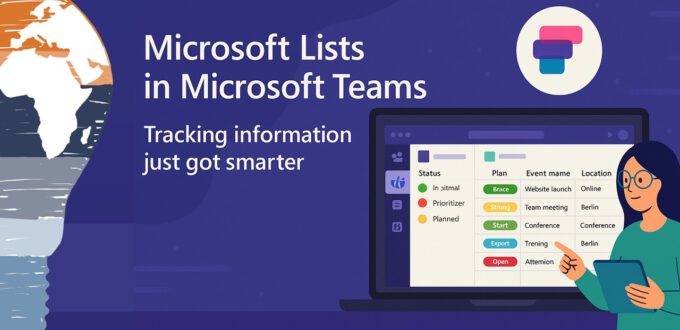
Sometimes Microsoft ships a feature that makes you go, “Wait, didn’t SharePoint already do this?” And the answer is: yes, but not like this. Let me introduce you to a new friend in your Microsoft 365 toolbox: Microsoft Lists. And the good news? It’s finally landed in Germany. 🎉
After being teased by Microsoft back in May, it took a while to roll out, because, well, that’s just how global rollouts work in Redmond. But now that it’s here, let’s talk about why this is not “just another SharePoint list.”
Sometimes Microsoft ships a feature that makes you go, “Wait, didn’t SharePoint already do this?” And the answer is: yes, but not like this. Let me introduce you to a new friend in your Microsoft 365 toolbox: Microsoft Lists. And the good news? It’s finally landed in Germany. 🎉
After being teased by Microsoft back in May, it took a while to roll out, because, well, that’s just how global rollouts work in Redmond. But now that it’s here, let’s talk about why this is not “just another SharePoint list.”
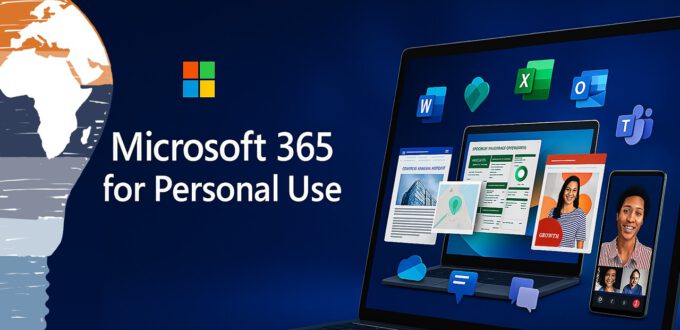
Let’s be honest: Microsoft has a long tradition of renaming things just when you’ve finally remembered what they were called. But this time, the rebranding from Office 365 Personal/Home to Microsoft 365 Single/Family isn’t just about slapping on a new label—it’s a whole new era of personal productivity.
So grab a ☕, buckle up, and let’s dive into what’s really changing on April 21, 2020 and why you (yes, even you!) might want to get a little excited. 💡
Let’s be honest: Microsoft has a long tradition of renaming things just when you’ve finally remembered what they were called. But this time, the rebranding from Office 365 Personal/Home to Microsoft 365 Single/Family isn’t just about slapping on a new label—it’s a whole new era of personal productivity.
So grab a ☕, buckle up, and let’s dive into what’s really changing on April 21, 2020 and why you (yes, even you!) might want to get a little excited. 💡
📅 Originally posted: 10.09.2019 | Updated for 2025
Let’s be honest: if you’ve ever ripped your headset off to grab a coffee, only to come back and see you missed a Teams call, you’re not alone. 😅 It’s a little digital tragedy many of us know too well.
Back in the good old Skype for Business days, we had a handy little feature: the secondary ringer. You could set your PC speakers to chime even if your headset was plugged in, giving you the freedom to roam without missing a ping. When Microsoft Teams took over, that feature went missing for a while. But now it’s back, and better than ever.
Let’s talk about how to make Microsoft Teams ring on both your headset AND your speakers, so you can sip your espresso in peace without losing a call.
The Headset-Only Era: Why Teams users struggled
For nearly two years, I helped migrate dozens of enterprise users from Skype for Business to Microsoft Teams. While most users embraced the new collaboration-centric UI, one tiny but mighty feature was sorely missed: the dual-ring capability.
In Teams, incoming calls initially rang only through the default device—which, for most people, was their headset. That’s great when it’s on your ears… but not so great when it’s on the desk, buried under paperwork, or still charging in the docking station. No extra chime from your PC speakers meant missed calls and missed opportunities.
We all felt it. I felt it. And finally Microsoft listened.
Secondary Ringer in Skype for Business
Roadmap ID 51089: The Feature that fixed everything
“Provides the capability to configure a second ringer for calling. This allows for headsets to be plugged in but still be able to hear an incoming call ring your device.”
Boom. There it was. The secondary ringer is now officially supported in Microsoft Teams—and it’s a game-changer.
You can now configure a second audio device (like your PC speakers) to ring in parallel with your headset. Meaning? No more missed calls while grabbing coffee, stretching your legs, or catching up with a colleague in the hallway.
How to configure a second ringer in Microsoft Teams
Here’s how to set it up in under 60 seconds:
1️⃣ Open Microsoft Teams. 2️⃣ Click on your profile picture > Settings. 3️⃣ Navigate to Devices. 4️⃣ Under the “Audio devices” section, you’ll see Secondary ringer. 5️⃣ Choose your preferred secondary device (e.g., PC speakers, monitor audio, or external soundbar). 6️⃣ Done. Just like that, you’re back in the loop.
🔔 Pro tip: If you’re using a docking station with built-in audio output, you can also use that as your second ringer for added flexibility.
Microsoft Teams secondary Ringer
Finding the little things that make a big difference
In a hybrid world where we juggle Teams calls, video meetings, and coffee runs, every ping counts. Having a secondary ringer isn’t just a nice-to-have—it’s a productivity booster.
Missed calls lead to missed meetings. Missed meetings lead to delays. Delays? Well, those lead to unhappy clients. Not on my watch. 💼
This update may seem minor, but it’s a great reminder that productivity lives in the details. Microsoft Teams continues to evolve—and I’m here to make sure you’re getting the most out of it.
WHY THIS MATTERS
✅ No more missed Teams calls when your headset’s off ✅ Secondary ringer lets your PC speakers join the action ✅ Available now in Microsoft Teams via Settings > Devices ✅ Simple change = measurable impact on responsiveness
Stay clever. Stay responsible. Stay scalable. Your Mr. Microsoft, Uwe Zabel
🚀 Curious about Microsoft Teams hacks, telephony tips, and unusual-but-awesome use cases? Check out the full Microsoft Teams section on zabu.cloud. Or drop me a note if there’s a specific topic you’d love to see next.
If you’ve ever wished your hands could stay busy while your brain got expert help from miles away—good news! Microsoft is delivering exactly that, and it’s called Dynamics 365 Remote Assist. Powered by Microsoft Teams and enhanced by the magic of Mixed Reality, it’s reshaping how frontline workers—technicians, engineers, and support staff—get the job done.
The recent announcement of HoloLens 2 put a spotlight on immersive collaboration. Microsoft’s goal? Reduce “time-to-value” and help customers realize real-world benefits faster—no more “future tech, someday” dreams. It’s here. It’s now. And it’s dazzling.
Let’s dive into what makes Remote Assist a game-changer in 2019—and why it’s the ultimate proof that Teams is no longer “just” a chat app.
HoloLens 2 + Dynamics 365 Remote Assist: A New Reality
While branded under the Dynamics 365 umbrella, Remote Assist quietly taps into the power of Microsoft Teams under the hood. Think about it: Teams has absorbed Skype for Business, inherited its enterprise-grade calling and video conferencing, and fused it into something modern, scalable, and collaboration-ready.
Remote Assist builds on this foundation. With a HoloLens 2, a technician in the field can share their exact point of view live with a remote expert—no more blurry photos or long-winded explanations. Instead, it’s “you see what I see” in real-time.
It’s smart, it’s simple—and it’s deeply strategic. Microsoft is quietly showing us the convergence of productivity, communication, and spatial computing.
What Makes Remote Assist So Powerful in 2019?
Here’s what you can do right now using Remote Assist with HoloLens 2 and Microsoft Teams:
📞 Make live calls between a HoloLens and Microsoft Teams
🧠 Move freely while transmitting high-quality visuals to your remote expert
🎯 Receive visual annotations—arrows, drawings, images—overlaid on your field of view
✏️ Collaborate through real-time drawings and annotations from desktop to HoloLens
📺 Share your screen and present key documentation or schematics in MR
🧽 Undo, delete, or update annotations instantly
👓 Get expert guidance without flying someone across the country
This isn’t just collaboration—it’s presence without physical presence. And in industries where uptime is everything, that’s not a luxury. It’s a necessity.
Remote Assist for Android: MR on a Budget
Let’s be honest—not everyone has a HoloLens lying around. At €5,000+, it’s an incredible device but not always within reach.
Enter Remote Assist for Android.
By bringing Remote Assist to Android smartphones, Microsoft unlocks massive accessibility. The same field technician who’s already carrying a rugged device can now access remote expertise using the phone in their pocket.
💡 This changes the game. Organizations can scale Remote Assist quickly without hardware rollouts. The training curve is minimal, and the benefits are immediate.
Imagine a world where every field service call, no matter how remote, comes with a built-in expert—without ever booking a flight.
What It Means for Business
Microsoft is showing us the future—and it’s not just about tech. It’s about transformation:
Reducing service downtime by enabling real-time expert assistance
Lowering operational costs by slashing unnecessary travel
Improving onboarding and training by providing hands-on remote guidance
Empowering Firstline Workers to be just as connected as the C-suite
In short, Remote Assist turns expertise into a service—one that scales, travels instantly, and fits into your existing Microsoft Teams deployment.
This is one of those rare times when tech actually feels like magic—and it’s powered by something as familiar as Teams.
Stay clever. Stay responsible. Stay scalable. Your Mr. Microsoft, Uwe Zabel
🚀 Curious how mobile first workes with Microsoft solutions? Follow my journey on zabu.cloud—where cloud, AI, and business strategy converge. Or ping me directly—because building the future works better as a team.
Manage Consent
To provide the best experiences, we use technologies like cookies to store and/or access device information. Consenting to these technologies will allow us to process data such as browsing behavior or unique IDs on this site. Not consenting or withdrawing consent, may adversely affect certain features and functions.
Functional
Always active
The technical storage or access is strictly necessary for the legitimate purpose of enabling the use of a specific service explicitly requested by the subscriber or user, or for the sole purpose of carrying out the transmission of a communication over an electronic communications network.
Preferences
The technical storage or access is necessary for the legitimate purpose of storing preferences that are not requested by the subscriber or user.
Statistics
The technical storage or access that is used exclusively for statistical purposes.The technical storage or access that is used exclusively for anonymous statistical purposes. Without a subpoena, voluntary compliance on the part of your Internet Service Provider, or additional records from a third party, information stored or retrieved for this purpose alone cannot usually be used to identify you.
Marketing
The technical storage or access is required to create user profiles to send advertising, or to track the user on a website or across several websites for similar marketing purposes.