Tag: Microsoft

  • Microsoft AI Tour Frankfurt: How Agentic AI Is Transforming Application Modernization

    Microsoft AI Tour Frankfurt: How Agentic AI Is Transforming Application Modernization


    Microsoft AI Tour Frankfurt: How Agentic AI Is Transforming Application Modernization


    Yesterday’s Microsoft AI Tour in Frankfurt was a powerful reminder of what happens when technology, strategy, and real-world solutions meet on the same stage.
    No theory. No buzzword bingo. Just practical AI in motion.

    We were there as a sponsor with Sogeti – Part of Capgemini, showcasing what AI really looks like when it moves beyond the hype: accelerating application modernization at scale, reducing technical debt, and enabling companies to become truly AI-ready.

    Our booth carried exactly that message:

    “This is what AI really looks like.”

    Not abstract. Not future talk. Real workloads. Real code. Real business value.


    THANK YOU, MICROSOFT – AND EVERYONE WHO MADE THIS POSSIBLE


    Huge appreciation to the Microsoft team for the invitation and the platform to share our work.
    Special thanks to Sandra Ahlgrimm and Julia Kordick for the outstanding partner orchestration on-site.

    And of course – a massive shout-out to our own team:

    • Manuel Kaiser & Kristina Peteln – for a high-impact lightning talk on Business Application Transformation – Reinvented by Agentic AI. Sharp message, strong demo, zero fluff.
    • GitHub Team – for the great exchange around Copilot, Secure DevOps, and AI-assisted engineering.
    • Our Alliances & Sogeti colleagues – for planning, logistics, and the “OneCapgemini” execution behind the scenes:
      Jessica Bois, Christopher Friedrich, Berry van der Stroom – and everyone who helped make booth 504 the place for deep modernization talks.

    I personally had dozens of impactful discussions: CIOs, architects, platform owners, and engineering leads – all asking the same core question:

    “How do we modernize our applications fast enough to benefit from AI instead of being disrupted by it?”

    That question leads us straight into the real topic of the decade.


    WHY AGENTIC-AI-BASED APPLICATION MODERNIZATION MATTERS NOW


    Modernization used to be a technical initiative.
    Today, it’s a survival strategy.

    Legacy systems aren’t just slow or expensive. They block AI adoption. They block scalability. They block talent. They block innovation. And Operations are oftens expensive and bulky.

    Agentic AI changes the game:

    • 🚀 Modernization at industrial speed
      Automated code analysis, pattern detection, refactoring, and migration – executed by AI agents, not human brute force.
    • 🔁 Continuous modernization, not one-time migration
      Systems evolve in sync with business, not every 7–10 years in a crisis.
    • 🔐 Security & compliance by default
      Legacy risk disappears when workloads move to modern, governed, observable platforms.
    • 🧠 AI-native architecture becomes standard
      Event-driven systems, microservices, Copilot-ready engineering environments, cloud-optimized cost models.

    Or in simpler words:

    Modernization is no longer about “upgrading tech.”
    It’s about enabling the enterprise to think, act, and scale in an AI-driven world.

    And that’s exactly why we built GenSuite – our AI-accelerated modernization engine that analyzes, transforms, and migrates entire application landscapes with automated agents at its core.

    This isn’t PowerPoint. We’re doing it today – and the interest at the booth confirmed:
    This topic just moved from IT-department level to board-level priority.


    EVENT IMPRESSIONS


    WHAT HAPPENS NEXT


    We’ll feed all learnings, conversations, and signals from Frankfurt into our upcoming modernization playbooks, Copilot adoption frameworks, and agentic-AI reference architectures.

    If you’re asking yourself any of these questions…

    • “How do we modernize 5,000+ apps without a 5-year budget?”
    • “How do we make our landscape (Agentic-) AI-ready?”
    • “How do we remove legacy blockers and enable AI everywhere?”

    …then let’s talk.

    The companies that master AI-driven modernization now won’t just reduce cost.
    They’ll set the speed of their entire market.

    Stay clever. Stay responsible. Stay scalable.
    Your Mr. Microsoft,
    Uwe Zabel


    Want to explore what Agentic AI-powered modernization can do for your application landscape?
    Follow my journey on zabu.cloud—where cloud, AI, and business strategy converge.
    Or ping me directly—because building the future works better as a team.

  • Celebrating Microsoft’s 50-Year Journey

    Celebrating Microsoft’s 50-Year Journey


    Conflict Management

    & Celebrating Microsoft’s 50-Year Journey


    This past week, I had the privilege of attending a Conflict Management training session. Now, before you think, “Oh great, another corporate workshop,” let me assure you it was genuinely eye-opening. I’ve been in various leadership roles for many years, and trust me, I’ve encountered and navigated my fair share of conflicts. But taking dedicated time to systematically reflect on these experiences, analyzing what happened, how I reacted, and what I learned, proved to be incredibly valuable.

    Here’s the thing: wherever people come together, be it at work, in communities, or even within families, conflicts are inevitable. It’s just part of human nature. The critical part isn’t avoiding conflicts at all costs (because honestly, that’s neither realistic nor healthy); it’s about how we manage and resolve them when they do arise. Observing our own responses in the heat of the moment and reflecting afterward is crucial for personal and professional growth.


    Conflict Management changes when under stress


    Interestingly, the training emphasized how our conflict-management styles change dramatically under stress. Imagine this scenario: when we’re relaxed and calm, most of us instinctively aim for cooperative solutions, looking for those magical win-win outcomes. But put us under pressure like tight deadlines, demanding stakeholders, limited resources and suddenly, cooperation might not be our first instinct.

    My honest takeaway from this session? It depends. 😉 Seriously though, your reaction in a conflict heavily depends on the role you’re playing at the moment (whether as a manager, a team member, an executive, or even a spouse or neighbor). It also greatly depends on your relationship with the person on the other side of the table. With someone you hardly know or don’t plan on interacting with long-term, you might naturally lean toward a more assertive stance to ensure your point is clearly made. However, if it’s someone close like your partner, a valued colleague, or a neighbor you’ll see every day, you might find yourself prioritizing compromise and harmony over “winning” the argument.

    It’s fascinating to notice these shifts in our conflict strategies. I’m curious: how about you? When you’re under stress, do you tend to stand your ground and push your perspective assertively? Or are you more inclined to find a middle ground and compromise?


    Microsoft has just turned fifty


    Speaking of long-term relationships and conflicts, there’s one partnership I particularly cherish, despite occasional challenges: Microsoft and Capgemini. Did you know Microsoft just turned 50? That’s right, half a century old! For a tech company, especially in the fast-paced, constantly evolving IT industry, that’s a milestone worthy of celebration.

    Microsoft has shaped our digital landscape profoundly. Founded back in 1975 by Bill Gates and Paul Allen, Microsoft started small, very small. Their first product was a BASIC interpreter for the Altair 8800, a computer most of us today have probably never even heard of. From these modest beginnings, Microsoft quickly rose to prominence, first revolutionizing personal computing with Windows and Office, then branching out into gaming with Xbox, and ultimately becoming a powerhouse in cloud and AI technologies with Azure and Copilot. Microsoft’s journey truly mirrors the evolution of modern technology itself.

    And here’s a fun twist for their 50th birthday: Microsoft aims to set a Guinness World Records title! They’re going for “Most users to take an online multi-level artificial intelligence lesson in 24 hours.” This global event kicks off on April 7 at 23:00 UTC and wraps up exactly 24 hours later, on April 8.


    Celebrate with online training


    What better way to demonstrate the strength of your Microsoft commitment than by participating enthusiastically in this challenge? I strongly encourage all of you to register and represent yourself proudly. You can find out more and sign up right here: AI Skills Fest | Home.

    Reflecting on my own journey over the past five-plus years at Capgemini, particularly focusing on our Microsoft business within the Business Unit Germany, fills me with pride. Together, we’ve accomplished remarkable things:

    • Securing massive, transformative client projects, notably with global giants like Bayer, BMW, Fresenius and more.
    • Earning the prestigious title of Microsoft Partner of the Year in 2022, a testament to our effective and close collaboration.
    • Launching groundbreaking initiatives like our joint Intelligent App Factory and AI-based Application Modernization program.
    • And the cherry on top: since early 2024, Capgemini officially stands as the largest Microsoft partner in Germany.

    These achievements don’t come easily or without the occasional conflict or difficult discussion. But the hallmark of our partnership has consistently been mutual respect, cooperation, and a shared commitment to finding the best possible solutions.

    So, as Microsoft celebrates its 50th anniversary, let me say a heartfelt “Happy Birthday!” 🎉 Thank you, Microsoft, for being an outstanding partner over these decades. I’m eagerly looking forward to our continued journey, hoping for plenty more successes, innovations, and yes, perhaps fewer conflicts. 😉

    Let’s maintain our collaborative spirit, commitment, and focus. Together, I’m confident we’ll achieve sustainable success for years to come with Microsoft Cloud.

    Thanks for everything, dear Microsoft, and here’s to the next chapter in our partnership story!

    Your Mr. Microsoft

  • Shift-Left Security: Enhancements in GitHub and Azure DevOps

    Shift-Left Security: Enhancements in GitHub and Azure DevOps


    Shift-Left Security:
    Enhancements in GitHub and Azure DevOps


    Have you ever jolted awake at 3 a.m. realizing you might have committed secret credentials into your public repo? 😱 That thought once sent a shiver down the spine of one of my best workmates. It’s that dreadful “oh no” moment we all fear. Before DevSecOps took off, he scrambled through logs and prayed that no one had cloned the repo. Today, Microsoft and GitHub give us far better solutions for preventing such nightmares. In this post, we’ll explore how GitHub Advanced Security and Azure DevOps are reinventing “shift-left security,” injecting automated checks and AI-based reviews into every stage of development. We’ll also highlight why these improvements make business sense—especially for large enterprises juggling compliance and rapid innovation. Buckle up, because we’re diving into the future of secure software delivery.


    Why Shift-Left Security Matters


    Picture a classic development timeline. You write code, you test, you merge, and then—right before production—someone says, “Wait, we should do a security scan.” That’s too late. By then, any bug fix is expensive, and any discovered breach is a potential fiasco. Shift-left security flips the script. It inserts automated checks and compliance reviews early, so issues are spotted while they’re still easy to fix. Think of it like catching termites before they devour the house.

    For large organizations with geographically scattered teams, shift-left approaches are invaluable. One oversight in a massive codebase can snowball into a critical vulnerability. Early scans reduce the chance of letting that slip through. They also save time, money, and reputational damage. A major breach can cost millions, plus shatter customer trust. Early detection and continuous feedback loops can preempt that storm.


    What’s New in DevSecOps for GitHub and Azure DevOps


    Microsoft and GitHub have doubled down on integrated tooling. They’re merging capabilities across development platforms, code scanning engines, and AI-based analyzers. Here’s a taste of the enhancements making waves:

    • GitHub Advanced Security
      GitHub’s CodeQL scanning engine is sharper than ever. It parses your code, interprets it like a database, and runs queries to detect dangerous patterns. Think SQL injections or unsafe file operations. Instead of waiting for a production exploit, CodeQL flags suspicious code as soon as it’s pushed. Newer features also detect secrets in commits. If your code accidentally includes credentials, GitHub warns you before that slip becomes a crisis.
    • AI-Assisted Code Reviews
      GitHub Copilot isn’t just suggesting code snippets anymore. It’s evolving to spot vulnerabilities, guide you toward safer coding patterns, and highlight suspicious logic. In some scenarios, it can comment directly on pull requests, explaining why your approach might be risky. It’s like having a persistent, tireless security advisor who never gets bored or distracted.
    • Integration with Microsoft Defender for Cloud
      In multi-cloud or hybrid setups, DevSecOps needs to go beyond code checks. Defender for Cloud links GitHub or Azure DevOps pipelines to security scans in your underlying environment. That includes container images, Kubernetes clusters, and Infrastructure as Code (IaC) templates. If the system detects known vulnerabilities or misconfigurations, it can stop your pipeline. That spares you from deploying something with a gaping security hole.
    • Microsoft Entra Permissions Management
      Excessive privileges are a big threat. One misconfigured service account can open the floodgates to attackers. Entra Permissions Management automates the detection of over-provisioned roles. It flags them and suggests or applies least-privilege measures. Tie this into your DevSecOps workflow, and you’ll ensure that new microservices or DevOps bots never go live with risky privileges.

    How These Features Impact Large Enterprises


    Why should a CIO or an IT manager at a global automotive or financial firm care about these new DevSecOps improvements? The quick answer: cost savings, risk reduction, faster releases, and happier customers.

    • Cost Savings
      Early detection is cheaper than emergency patching. One security flaw found late can balloon into a high-stakes, high-cost event. Financially, the difference between a pre-release fix and a post-release meltdown can be staggering. That’s not just for dev hours. Think legal fees, fines, and PR crises when data is compromised. Early scanning with CodeQL or AI-based code review staves off those catastrophic bills.
    • Risk Reduction
      High-profile breaches erode trust overnight. Large enterprises—especially those dealing with sensitive data—can’t afford the negative press of leaked records or compromised systems. DevSecOps ensures that each commit, each container build, passes through automated checks. If something is amiss, it’s flagged or blocked. This systematic approach reduces the chance of an unpatched vulnerability slipping into production.
    • Compliance and Audit
      Enterprises often juggle ISO 27001, SOC 2, PCI-DSS, GDPR, or HIPAA. Traditional compliance processes require extensive manual reporting. With DevSecOps, pipeline logs and security scans act as a digital audit trail. You can easily demonstrate that each build meets your security baselines and pass audits with minimal fuss. That’s a relief for teams that spent years assembling data from scattered systems just to appease external examiners.
    • Continuous Delivery and Innovation
      Rapid release cycles are essential for staying competitive. When you embed security into the pipeline, you reduce the bottlenecks that can happen if vulnerabilities are discovered at the eleventh hour. Instead of halting everything, you fix the flaw early, keep the pipeline green, and continue iterating. Large organizations see better throughput and fewer code freeze disruptions.

    Deeper Look at GitHub Advanced Security


    GitHub used to be a code-hosting giant, but it’s transforming into a DevSecOps powerhouse. Part of that shift involves CodeQL, which acts like a supercharged search engine for your code. It’s especially helpful for big enterprises that maintain monstrous monorepos or dozens of microservices. If you suspect common vulnerabilities might lurk in a thousand lines of repetitive code, you can craft a CodeQL query to find every instance.

    • Secret Scanning
      One of the biggest immediate wins is secret scanning. We’ve all seen Slack messages or commits with environment variables. Sometimes that “quick test” or “hardcoded token” sneaks into the commit history. GitHub checks your push or pull request for tokens that resemble known patterns (like AWS keys or Azure credentials). If it detects a match, you get an alert right away. That alone can prevent some of the most damaging leaks in corporate history.
    • Copilot’s Security Moves
      When Copilot debuted, many devs saw it as a neat auto-completion tool. Now, it’s evolving into a more robust code reviewer. As you type, it might point out, “Hey, that SQL query is built from user input. Consider parameterization to avoid injection.” For enterprises dealing with millions of lines of code, an AI tool that constantly polices best practices can be a major boon. It won’t replace seasoned security engineers. But it can catch smaller issues, letting the human experts focus on more intricate threats.

    Azure DevOps and Its Security Upgrades


    Some organizations use GitHub for open-source or community collaboration, then rely on Azure DevOps for private, internal repos. Azure DevOps remains a mainstay, especially in enterprises that grew up on Team Foundation Server (TFS). Microsoft hasn’t left these teams behind. Azure DevOps has been updated with deeper security gates, pipeline scanning, and better links to Microsoft Defender for Cloud.

    • Pipeline Security Gates
      Pipelines used to be about unit tests, maybe some smoke tests, and done. Now you can insert security gates that run scans before code merges. If vulnerabilities cross a certain threshold, the pipeline fails. Developers see the red flags instantly and fix them. This approach fosters a culture of responsibility. No one can skip a mandated security check or rely on a separate security team to “handle it.” The pipeline enforces your rules, automatically and consistently.
    • Defender for Cloud Integration
      Imagine you’re building container images that eventually run in Azure Kubernetes Service (AKS). As your Azure DevOps pipeline publishes a container image, Defender for Cloud scans it for known vulnerabilities. If the base image or installed libraries have CVEs, your pipeline is halted or flagged. That’s shift-left logic at the container level. With the explosion of microservices, ensuring each container is secure is crucial. No enterprise wants to deploy an image loaded with unpatched exploits.

    Microsoft Entra Permissions Management


    Enterprises often have a web of user roles, service principals, and third-party integrations. Over time, privileges expand. A single misconfiguration can become a ticking time bomb. Entra Permissions Management automates scanning for roles that exceed recommended privileges. It can even auto-correct if something is glaringly wrong. Integrating that into your DevSecOps workflow means that new services or roles created in code or pipelines can’t spiral out of control with overblown permissions.


    Use Cases That Highlight the Benefits


    Consider a multinational bank. They have regulated data in multiple regions and thousands of devs working on a common codebase. In the past, those devs might rely on a dedicated security team to handle final scans. That creates a bottleneck. Now, each dev can see immediate feedback thanks to GitHub’s CodeQL or Azure DevOps pipeline gates. The result? Rapid code merges, minimal overhead, and fewer security nightmares.

    In automotive, connected cars produce a mountain of data. Devs create services for in-vehicle infotainment, telemetry, and real-time diagnostics. A vulnerability in that chain could lead to remote exploits. With DevSecOps, scanning runs from the moment code is written to the second it’s deployed to the car’s backend. That robust pipeline fosters consumer trust in a competitive space.

    Healthcare organizations house personal and clinical data. They can’t afford compliance breaches under HIPAA or GDPR. DevSecOps workflows help them prove that each microservice passes security checks, code scanning, and secret detection. Should auditors come knocking, they produce logs from each pipeline run. The auditing process, once dreaded, becomes straightforward.


    Application Modernization: How DevSecOps Fits


    I’ve switched from a Cloud Infrastructure role to one focused on Cloud & Custom Applications. That move made me appreciate how DevSecOps is crucial for modernizing applications. Legacy systems often harbor vulnerabilities. When you break down monoliths into microservices or move them to containers, the number of code repos rises. The potential for errors also climbs. Without robust security scanning and pipeline gating, you’re asking for trouble.

    Modernization also tends to involve advanced architectures like serverless functions, containers, or distributed microservices. Each piece can become an attack vector. By embedding DevSecOps in your design, you ensure that every function, container, or library version is up to snuff. Instead of seeing security as a separate finishing touch, you treat it like a blueprint requirement.


    Deep Dive into CodeQL


    Let’s get geeky. CodeQL effectively treats your code like a relational database. You can query it for patterns that correspond to vulnerabilities. Want to find all places where user input goes into a string used by a database call? Write a CodeQL query. This scanning happens automatically in GitHub Actions or as part of a check in your pull requests.

    In big organizations, you can standardize certain CodeQL queries that reflect known policies. For instance, “No plain-text logging of user passwords.” A single query can search your entire codebase. If new devs accidentally add something that violates that rule, CodeQL surfaces it immediately.


    AI-Assisted Reviews: The Future Is Here


    GitHub Copilot is an impressive sidekick. It suggests code, yes, but it can also call out suspicious constructs. We’re edging toward a scenario where you type a function, and Copilot says, “Careful, you’re handling JWT tokens incorrectly. Here’s a safer approach.” For large enterprises with multiple dev squads, that extra set of AI eyes reduces the risk of a quick ‘n’ dirty hack making it to production. Over time, developers absorb these best practices, so the whole organization levels up in security awareness.

    Still, AI is not a cure-all. False positives happen. So do missed issues. The trick is to combine AI scanners with skilled humans who interpret the results. This synergy keeps your security posture strong without bogging everything down in noise.


    Defender for Cloud: Security for Apps and Infrastructure


    Microsoft Defender for Cloud is the umbrella solution that scans resources in Azure, on-prem, or other clouds. The biggest advantage? It unifies your security checks. If your app uses Azure SQL, a cloud-based queue, and some container instances, Defender for Cloud scans them all. Then it feeds alerts back to your DevOps pipeline. You could fail a build if the container image is known to have a CVE. Or you could block deployment if Azure SQL logs show unusual access patterns.

    In complex multi-cloud setups, Defender for Cloud extends to AWS or GCP resources. That gives large enterprises a single pane of glass for cross-cloud security checks. No more toggling between multiple dashboards, hoping you don’t miss a critical alert.


    Real ROI for the Business


    DevSecOps shortens release cycles while lowering the odds of a catastrophic breach. A global retailer can roll out new e-commerce features quickly, confident that container scans, code checks, and secret detection are in place. A healthcare provider can unify dev teams in multiple countries under one standard pipeline, simplifying compliance. A bank can reduce manual security reviews, focusing instead on high-level threat modeling. All these outcomes translate to better efficiency, stronger trust, and often, direct savings.

    Many studies indicate that addressing a bug during coding is up to 100 times cheaper than fixing it in production. Multiply that by thousands of commits or features across a year, and the financial argument is clear. Security is no longer a drag on velocity. It’s an enabler of sustainable, cost-effective innovation.


    Challenges to Expect


    Yes, DevSecOps is amazing. But watch out for pitfalls. Overzealous security scans can slow your pipeline. If every commit triggers a half-hour code analysis, dev teams might start complaining. Then there’s the potential confusion of mismatched scanning rules across multiple repos. Also, “security fatigue” can occur if teams see too many false positives.

    Culture change is key. Developers must view security not as a nuisance, but as their responsibility. Security experts must learn to trust automated checks and only step in when deeper expertise is required. Balanced guardrails are more effective than rigid gating.


    Best Practices to Kickstart DevSecOps


    • Start small. Pick a pilot project and enable GitHub Advanced Security or Azure DevOps pipeline checks.
    • Fine-tune scanning rules. Don’t drown devs in false positives.
    • Provide training. Show your teams how to interpret CodeQL scans or Copilot flags.
    • Involve security folks early. They can help define critical queries or compliance checks.
    • Integrate with Defender for Cloud. Monitor container images, cloud infrastructure, and code in one place.
    • Set policies. Decide which vulnerabilities are show-stoppers and which just issue warnings.

    This phased approach builds confidence. You can’t flip a switch and expect a decades-old organization to fully embrace DevSecOps overnight. But you can show quick wins, gather momentum, and expand from there.


    Links and References for Shift Left Security


    • Microsoft DevOps Blog
      • Official announcements for Azure DevOps features, pipeline improvements, and DevSecOps updates.

    Both sources frequently share best practices, deep dives, and upcoming feature previews.


    Why This Matters for Application Modernization


    Modernizing legacy apps often means refactoring code, breaking monoliths into microservices, and deploying to containers. With each new piece of code or service, security considerations multiply. DevSecOps keeps you sane in this swirling sea of transformation. By scanning at every commit, ensuring new containers are safe, and restricting permissions for new components, you avoid letting modernization become an open door for vulnerabilities.

    Large enterprises especially benefit because their code and infrastructure are enormous. Without a systematic approach, modernization efforts could devolve into chaos. DevSecOps provides guardrails and constant feedback, so you maintain velocity without tripping over security landmines.


    Final Thoughts: Security as a Team Sport


    DevSecOps is more than just a set of tools or pipeline steps. It’s a cultural shift where developers, security teams, and operations pros collaborate. GitHub Advanced Security and Azure DevOps are unveiling powerful features to make that shift easier. Early scanning, AI-driven insights, and integrated defenses take the guesswork out of secure development.

    When you think about it, no developer wants to introduce vulnerabilities. No security engineer wants to be the dreaded “Department of No.” With DevSecOps, both roles align around a shared goal: shipping reliable, secure software, faster. That synergy matters to the boardroom, to your end users, and, yes, to your own peace of mind at 3 a.m.

    So if your enterprise hasn’t yet embraced shift-left security, this is the perfect moment to jump in. Modern pipelines let you bake compliance and safety into every push, saving time and building trust. For me, that means fewer night sweats over possible secret leaks and more time spent creating awesome features. Give it a shot. Let CodeQL and AI-based code reviews watch your back. Let Defender for Cloud and Entra Permissions handle the infrastructure and permissions side. And let your teams focus on what they do best: writing code that changes the world—securely.

    👉 Want More?

    Check out more Microsoft Teams tips, Power Platform hacks, and Excel power tricks right here on zabu.cloud. Because geeky productivity is the best kind.

    Stay clever. Stay secure.
    Your Mr. Microsoft,
    Uwe Zabel
  • Windows 365 Link + Azure Dev Box

    Windows 365 Link + Azure Dev Box


    Windows 365 Link + Azure Dev Box


    Microsoft reveals a new vision for desktop computing and coding. What does it mean for the future of workplace technology?

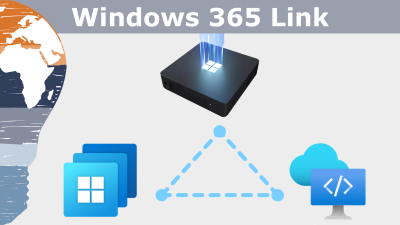
    #Microsoft used day 1 of its Ignite event to reveal a compact ARM-powered desktop PC calles Windows 365 Link. Imagine what this means, if we put this together with the powerful Azure Dev Box solution launched in 2023. 

    As Mr. Microsoft, I’m excited about these products and keen to see how they will influence our use of tech for work. 


    🖥️ ✨ A new take on the desktop experience


    Microsoft’s new compact desktop PC combines cutting-edge ARM architecture with the power of the Cloud. It’s called Windows 365 Link for a reason. This device only runs with a Windows 365 subscription and connects directly to a Windows 10 or Windows 11 Virtual Desktop hosted on Azure. 

    Bearing a passing resemblance to recent Mac Minis, this compact computer aims to deliver enterprise-grade performance in a form factor that fits anywhere – from the home office, to the boardroom, and everywhere in between. The ARM architecture promises optimized energy efficiency and enough local performance to satisfy most people’s needs.

    Although the idea of ‘thin clients’ powered from the cloud is not new, The Windows 365 Link could be a compelling option for organizations that are invested in Microsoft technology and are keen to leverage the company’s growing suite of AI tools. 

    The format could also provide intriguing hotdesk options for those organizations that accommodate a mix of on-site, remote and hybrid working arrangements. 


    🌐 Azure Dev Box: A Developer’s playground in the cloud


    Imagine a development environment available on demand, tailored to your needs, and scalable with just a few clicks. 

    The re-introduced Azure Dev Box makes this a reality by providing:

    Pre-configured environments for development, testing, and deployment

    – Cloud-powered performance for demanding workloads without the need to procure powerful hardware on site

    – Streamlined management with integration into existing tools like Intune and Azure Active Directory

    In short, the Azure Dev Box enables developers to focus on coding without worrying about setup or resource constraints. It’s a big deal for individuals and teams whose business is focused on building digital products. 


    💻 Why I think this Matters …


    These reveals are about more than hardware and software. With these solutions, organizations can empower their users and dramatically simplify the process of provisioning workplace tech. 

    Combined with a commitment to rolling out powerful AI-powered solutions, it’s clear that Microsoft is focusing on reinventing the workplace tech environment – improving worker productivity, while providing their employers with unprecedented levels of flexibility and scalability. 

    Read more about it: Windows 365 Link: Cloud PC Device, Simple and Secure

    👉 Want More?

    Check out more Microsoft Teams tips, Power Platform hacks, and Excel power tricks right here on zabu.cloud. Because geeky productivity is the best kind.

    Stay clever. Stay curious.
    Your Mr. Microsoft,
    Uwe Zabel

  • 🚀 SAP & Microsoft Sign 3-Year Strategic Partnership

    🚀 SAP & Microsoft Sign 3-Year Strategic Partnership


    🚀 SAP & Microsoft Sign 3-Year Strategic Partnership

    Simplifying SAP Cloud Migrations


    When two giants of the enterprise software world shake hands, it’s worth paying attention. On October 21, 2019, SAP and Microsoft signed a three-year strategic partnership agreement, aiming to help their joint enterprise customers modernize and migrate their business processes into the cloud.

    This deal doesn’t just tighten SAP’s relationship with Microsoft’s Azure cloud platform—it also highlights SAP’s strategy of working with all three hyperscalers: Azure, AWS, and Google Cloud. Internally, SAP calls this initiative Project Embrace. And that name is telling: SAP isn’t picking sides. Instead, it’s embracing the entire cloud ecosystem.

    That said… it’s clear Microsoft Azure holds a special place at the table.


    🏆 New Leadership, New Focus


    Interestingly, the announcement came shortly after SAP’s longtime CEO Bill McDermott stepped down, making way for Jennifer Morgan—the first woman to lead a company listed in Germany’s blue-chip DAX index.

    And what did Morgan focus on in her first major announcement?
    SAP S/4HANA. No surprise there.

    SAP’s flagship product, S/4HANA, remains at the heart of its cloud transformation strategy. As Morgan highlighted during the company’s Q3 earnings call, SAP posted a 10% revenue increase for the quarter—a sign that the transition from on-premise to cloud services is already paying off.


    ☁️ Why This Partnership Matters


    In Morgan’s own words:

    “We’ve bundled SAP’s cloud platform services to support customers around extension, integration, and orchestration of SAP systems.”

    Translation: SAP’s cloud services will now be sold through Microsoft’s global sales channels. For customers, this means:

    • Simplified purchasing
    • Integrated support models
    • A more cohesive roadmap for running SAP workloads on Azure

    Why does this matter? Because historically, migrating from on-prem SAP systems to the cloud wasn’t exactly… smooth. Many enterprises viewed SAP cloud transformations as:

    • Overcomplicated
    • Resource-intensive
    • Risky
    • And full of hidden costs

    This partnership is SAP and Microsoft’s joint response to those concerns.


    🎯 The Strategic Reality: SAP Cloud or Azure?


    Now, here’s a nerdy detail many outside SAP circles don’t realize:
    SAP’s own SAP Cloud Platform is largely powered by… wait for it… Microsoft Azure.

    Yes, you read that right. SAP Cloud Platform is effectively a managed layer running on top of Azure infrastructure. In other words, customers using “SAP Cloud” are often already leveraging Microsoft’s hyperscaler platform—whether they know it or not.

    This partnership simply formalizes that relationship:

    • SAP focuses on applications, extensions, and business processes.
    • Microsoft delivers the scalable, secure cloud infrastructure underneath.

    From a customer perspective, this is good news:

    • Azure infrastructure with SAP-specific optimizations
    • Microsoft global support combined with SAP services
    • Joint innovations coming from two industry leaders

    🛠️ Making Cloud Migrations Easier


    At its core, this partnership aims to tackle one of the biggest barriers to cloud adoption:

    Complexity.

    Together, SAP and Microsoft are working to:

    • Provide reference architectures for SAP workloads on Azure
    • Co-develop migration toolkits to simplify onboarding
    • Build integrated support models to streamline operations
    • Automate infrastructure provisioning with Microsoft Azure blueprints
    • Reduce the friction of managing hybrid SAP environments

    For companies running SAP on-premises, this partnership sends a clear message:
    It’s time to move. And we’re making it easier.


    🚀 The Big Picture: Why Azure Is Winning SAP Workloads


    While SAP maintains partnerships with AWS and Google Cloud, it’s no secret that Microsoft Azure has become the preferred cloud platform for SAP workloads. Why?

    Because Azure offers:

    • Seamless integration with Microsoft 365, Power BI, and Teams
    • Enterprise-grade security and compliance certifications
    • Deep experience running SAP workloads at scale
    • Familiar management tooling for IT teams (Azure Monitor, Azure Security Center)

    It’s not just about “where your data lives.” It’s about how your business runs.


    🧠 Final Thoughts from Mr. Microsoft


    As someone working deep in the Microsoft Cloud ecosystem, this partnership feels like the perfect match. SAP brings its expertise in enterprise applications; Microsoft brings its hyperscale infrastructure and global reach.

    Together, they’re simplifying SAP cloud migrations—and giving customers a future-proof roadmap to modern ERP.

    If you’re running SAP workloads on-premises and considering your cloud options, this partnership should tell you one thing loud and clear:

    SAP on Azure isn’t just possible. It’s preferred.

    And that’s a message your CIO needs to hear.

    Stay clever. Stay curious.
    Your Mr. Microsoft,
    Uwe Zabel


    🔍 Want to know what SAP S/4HANA on Azure looks like in practice? Dive deeper on zabu.cloud or reach out directly. I’ll help you map your cloud journey—without the buzzwords. 🚀

    Sources: Handelsblatt und Reuters

  • Outlook Mobile – Your Pocket-Sized Productivity Powerhouse

    Outlook Mobile – Your Pocket-Sized Productivity Powerhouse


    Outlook Mobile

    Your Pocket-Sized Productivity Powerhouse


    Most of us live in Outlook all day. Email, calendar, tasks, contacts—it’s our command center. But what about when you’re away from your desk? That’s where Outlook mobile steps in. And trust me, this isn’t just a slimmed-down version of your desktop app. It’s a finely tuned productivity engine—designed for your pocket, not just ported to it.

    If you use Outlook daily on your work laptop or desktop (like I do), downloading the app on your iPhone or Android device is a no-brainer. Not just for continuity, but for game-changing features that help you stay organized, responsive, and—yes—more productive.


    📅 One App to Rule Them All: Mail, Calendar, and Files


    Forget jumping between three different apps just to confirm a meeting and send a file. Outlook mobile puts everything you need—email, calendar, contacts, and even file storage—into a single, elegant interface.

    You can easily access files stored in OneDrive, OneDrive for Business, Dropbox, Google Drive, or Box—and attach them to emails directly from within the app. Less app-hopping, more getting stuff done.


    🌟 Notifications That Actually Matter


    We all know the notification struggle. Most apps either notify too much or not enough. Outlook mobile gets it right with a feature I love: favorite contacts.

    You can mark key contacts as favorites, and then configure notifications to only alert you when an email comes from one of them. That means no more pinging for newsletters or system alerts—just the messages that matter most.

    Favorite People in your pocket Outlook

    Bonus: with one tap, you can filter your inbox to show only those favorite senders. It’s like a VIP section for your email.


    🔍 Smart Search That Thinks Ahead


    The search function in Outlook mobile is seriously underrated. It doesn’t just scan your inbox. It looks across your calendar, people, and even files stored in the cloud.

    Looking for that budget spreadsheet Sandra sent last week? Just type budget Sandra and boom—Outlook pulls up emails, attachments, calendar invites, and even shared documents from OneDrive.

    No more “where did I see that?”—just fast answers.


    📬 Focused Inbox: Zero in on What Really Matters


    Inbox overload is real. But Outlook mobile fights back with Focused Inbox—a smart filter that separates your inbox into “Focused” and “Other” tabs.

    Emails from important senders and frequently interacted contacts land in the Focused tab, while things like marketing blasts and system-generated emails wait in Other.

    You can easily move messages between the two, teaching Outlook what’s important over time. It’s like having an AI assistant who curates your inbox.


    🎯 Final Thoughts: Small App, Big Impact


    Outlook mobile isn’t just a companion to your desktop—it’s a complete productivity tool in your pocket. Whether you’re reviewing documents on the go, scheduling meetings from a taxi, or filtering your inbox during your coffee break, the app has your back.

    If you haven’t downloaded it yet, do yourself a favor and try it out. Productivity doesn’t stop when you step away from your desk—and with Outlook mobile, it doesn’t have to.

    Stay clever. Stay responsible. Stay scalable.
    Your Mr. Microsoft,
    Uwe Zabel


    🚀 Curious about mobile productivity with Microsoft 365?
    Follow my journey on zabu.cloud—where cloud, AI, and business strategy converge.
    Or ping me directly—because building the future works better as a team.

  • Fujitsu Lifebook P727 – Business-Class Power In A Portable Package

    Fujitsu Lifebook P727 – Business-Class Power In A Portable Package


    Fujitsu Lifebook P727

    Business-Class Power In A Portable Package


    Back in December 2017, I received an unexpected surprise: Microsoft selected me to be a product tester for the Fujitsu LIFEBOOK P727. 🧑‍🔬💻


    Moments like these don’t happen every day and as a die-hard tech enthusiast, I was thrilled. Within days, the box arrived. Inside: the convertible LIFEBOOK P727, a USB-C docking station, and the Fujitsu stylus, complete with spare nibs. Everything I needed to give this device a real-world, business-class workout.

    Thanks again to the folks at Microsoft for this incredible opportunity!


    First Impressions: Not Your Average Plastic Brick


    Let’s get one thing straight: the P727 is no cheap plastic toy.
    This thing means business.
    The chassis feels solid, metallic, and premium. Clearly engineered with durability in mind. At just under 1.3kg, it strikes a sweet spot between portability and heft. It’s small enough to toss in a backpack, yet sturdy enough to feel like it belongs on the corner office desk.

    There was one aesthetic drawback: the surface shows fingerprints faster than you can say “Touch ID.” Fujitsu included a microfiber cloth, but still it’s worth noting.


    All the Ports, All the Flexibility: Meet the USB-C Port Replicator


    No dongles. No compromises.
    The included USB-C Port Replicator is a dream for hybrid professionals. It supports:

    • VGA, HDMI and DisplayPort
    • Three USB-A ports and two USB-C
    • Gigabit LAN
    • Combo audio jack
    • Pass-through charging via USB-C

    It makes setting up your mobile workstation a plug-and-play affair. However, I was a bit disappointed to find that a second power cable wasn’t included. So you’ll have to swap your main power supply between the laptop and docking station unless you purchase another one.

    Port Replicator
    Port Replicator

    Security That Scans Beneath the Surface: Fujitsu PalmSecure


    Here’s something you don’t see every day: vein pattern recognition.
    Fujitsu’s PalmSecure feature scans the unique pattern of your veins. Arguably more secure than facial recognition or PIN codes. ✋🔐

    Setup was quick (despite the software’s slightly outdated UI), and using it feels natural. However, Windows had a short memory and occasionally reverted to password login at boot. A minor frustration in an otherwise excellent security feature.


    Windows 10 Pro + Microsoft Intune = Enterprise Heaven


    As a Microsoft Cloud consultant, my work life revolves around devices that just work with M365, Azure AD, and Intune.
    This Lifebook, running Windows 10 Pro (Fall Creators Update, Build 16299), nailed that brief.

    All my policies deployed cleanly. Conditional Access worked. Office 365 ProPlus was snappy and reliable. Whether managing devices or collaborating on SharePoint, it performed like a champ.


    AI Assistant On Board: Cortana and Windows Ink at Your Service


    Cortana reminded me when to leave for meetings and gave me hints about the actual traffic.
    Windows Ink helped annotate PDFs and screenshots as well as brainstorm ideas on the fly.
    Both made me more productive and more organized.

    Only gripe? Windows Ink didn’t sync nicely with OneNote 2016 at the time. It worked, but not without a workaround.


    Convertible Design That Just Works


    Most of the time, I am working on this machine in the standard Laptop mode. But switching to tablet mode is effortless. Fold the screen back, and voilà, Windows prompts you to go full touch. Better yet, you can automate the transition. And the keyboard? Deactivates instantly when flipped. This way it is preventing those dreaded accidental key presses.

    One minor quirk: it wasn’t always clear at what angle the switch triggered. But it never failed to function.


    Typing Experience: Surprisingly Premium


    Typing on the P727 is a pure pleasure.
    The keyboard spacing is generous for such a compact form factor, with responsive, tactile feedback. It just feels great to use it. And the anti-glare screen? A lifesaver under office lighting.

    Unfortunately, German winter didn’t allow me to test in direct sunlight. But in every indoor scenario, brightness and color accuracy were excellent.

    blank

    The Fujitsu Digitizer Pen: Close, but No Surface Pen


    The included stylus supports pressure sensitivity and palm rejection. These are two must-haves for digital inking. The writing experience is smooth, and the pen glides across the screen effortlessly.

    That said, the button layout felt awkward. I missed having an eraser-style button on the top (like Microsoft’s Surface Pen). But in hand, it’s balanced and effective for note-taking, sketching, or annotating documents.


    Final Verdict: Built for Road Warriors and Power Users Alike


    The LIFEBOOK P727 fits in almost any bag and into any workstyle.
    On flights, at client meetings, or in coffee shops, it never let me down. The battery lasts long enough for a full day’s work. The stylus docks neatly in the chassis. And its build quality and connectivity are exactly what you’d expect at this price point.

    My only wish? A better touchpad and a smoother biometric login process.

    Still, with Windows 10 Pro and Office 365 onboard, this compact convertible earns a solid:

    👉 8 out of 10 for productivity

    Perfect for business travelers, consultants, and anyone who wants a reliable 2-in-1 workhorse with enterprise chops.

    Here you will find the whole Test on the Microsoft insiders Website

    Stay clever. Stay responsible. Stay scalable.
    Your Mr. Microsoft,
    Uwe Zabel


    🚀 Curious about the tools and tech that power modern consulting? Follow my journey on zabu.cloud—where cloud, AI, and business strategy converge.
    Or ping me directly—because building the future works better as a team.

  • Send by Microsoft: Email That Chats Like IM

    Send by Microsoft: Email That Chats Like IM


    Send by Microsoft:
    Email That Chats Like IM


    If you’ve ever typed “quick question” into an email and wished it behaved more like a chat, Microsoft just gave us a shiny new toy: Send. Born out of the Microsoft Garage and rumored earlier under the codename Flow, Send trims away subjects, signatures, CC/BCC. Basically all the ceremony that slows email down. This leaves you with fast, lightweight messages that still travel through your Office 365 mailbox. It’s email where it matters (compliance, archives, search) and chat where it counts (speed, simplicity). In todays fashion: delightfully minimal, unapologetically mobile.


    What Send Is and Why It’s Not “Just Another Messenger”


    Unlike WhatsApp or Skype, Send isn’t building a new network. It’s a thin client on top of your existing Exchange/Office 365 account. Messages you fire off in Send are real emails that land in the recipient’s inbox and remain in your mailbox history. The UI hides the baggage. No subject lines, no salutations, no CC fields. So “Got the deck?” or “5 min to talk?” takes one thumb and zero friction. And because it’s still email under the hood, your governance, retention, and eDiscovery rules keep working as before. That’s the clever bit.

    In July, Microsoft released Send for iPhone (initially for Office 365 work/school accounts in select regions), with Android preview and Windows Phone support on the roadmap. Conversations you start in Send show up in Outlook, and you can pick them up there, too. It feels like IM, but it behaves like mail—perfect for those micro-moments where chat is faster, yet your team still needs everything auditable and searchable later.


    The Flow Rumor Becomes Real


    Back in May, leaks hinted at an internal app called Flow. As a chat-like experience for email. The public release as Send confirms the intent. Strip email to its essence for quick back-and-forth without abandoning the backbone enterprises rely on. As Caschys Blog (stadt-bremerhaven) noted at the time, the idea was to remove the “unnecessary frills” from email so you can communicate at the speed of thought—no thread-naming ceremony, no formatting detours, no “Re: Re: Re:”. Just tap, type, done.


    Who Should Care


    If your teams live in Office 365 and constantly juggle short, transactional messages—field technicians checking ETA, sales asking for a price nudge, project leads confirming a build drop—Send fits like a glove. It’s especially handy when you don’t want to splinter your communication across yet another consumer chat tool, or when compliance means your “chats” must live inside Exchange.

    A few practical notes from the release window:
    Accounts: Initially Office 365 work/school only (no Outlook.com/Gmail at launch).
    Platform: iOS first; Android (preview) and Windows Phone slated to follow.
    Continuity: Messages originate in Send but are fully visible in Outlook—and vice versa for replying.
    Constraints: Send focuses on contacts already in your mailbox ecosystem, which helps reduce noise.


    Why This Matters Beyond the Hype


    Email won because it’s universal and durable. Chat wins when speed beats ceremony. Send stitches the two: real email addressability and retention, chat-level responsiveness. For IT, that’s strategic—no new archive to manage, no shadow IT to chase, fewer training docs to write. For users, it’s muscle memory with fewer taps. And for leaders, it’s productivity without sacrificing control.

    I see this as part of a bigger trend inside Microsoft: mobile-first UX on top of enterprise-grade platforms. We’ve got Outlook mobile maturing, Office apps on iOS/Android getting smarter, and now Send rounding off those “micro-email” moments that slow us down. It’s small, but it scratches a big itch.


    Try It, Then Tell Me What You Think


    If you’re running Office 365, put Send for iPhone into the hands of a pilot group that lives on quick confirmations and short asks. Watch how many emails start to look like DMs—and how little training you need. If it sticks, you’ve just made email feel modern without breaking your compliance model. That’s a rare win-win.

    Stay clever. Stay responsible. Stay conversational.
    Your Mr. Microsoft,
    Uwe Zabel


    🚀 Curious how mobile and Microsoft can go hand in hand?
    Follow my journey on zabu.cloud—where cloud, AI, and business strategy converge.
    Or ping me directly—because building the future works better as a team.

  • Belfiore’s Binary Shirt: When Windows 10 Easter Eggs Meet Geek Joy

    Belfiore’s Binary Shirt: When Windows 10 Easter Eggs Meet Geek Joy


    Belfiore’s Binary Shirt:
    When Windows 10 Easter Eggs Meet Geek Joy


    If you watched the Microsoft Build conference as closely as I did, you probably caught Joe Belfiore on stage wearing a Windows logo shirt… made entirely of 1s and 0s. Not just a fashion flex. This was a classic Microsoft wink to the developer crowd and a tiny puzzle hiding in plain sight. Naturally, the community went full Sherlock, grabbed screenshots, and started decoding. And yes—there were real messages baked into that matrix.


    How the Puzzle Worked (and why nerds like me grinned)


    The shirt’s pixels weren’t random noise. They were binary values that, when grouped into bytes and converted to ASCII, spelled out cheeky easter-egg phrases. This nods to the Windows 10 story we heard at Build. Think about references you’d expect. Plenty of insider-ish winks to the Windows Insider community and Build itself. It was a love letter to the people who read hex dumps for breakfast and compile code before coffee. Guilty as charged.

    If you’ve never decoded one of these before, the trick is simple but satisfying. Capture the bit pattern, split it into 8-bit chunks (e.g., 01001000 = 72). Map each byte to its ASCII character (“H”), and watch the phrase materialize. It’s like opening a Mystery Box from the keynote—one byte at a time.

    blank

    Why this tiny shirt easter egg mattered to me


    Windows 10 is more than a version bump. It is Microsoft’s “one platform” moment—PC, tablet, phone, even IoT—pulling together under one UX and app model. Build put that ambition on stage. Continuum promised fluid transitions between form factors. Cortana moved from novelty to real assistant. Universal Windows Platform signaled a simpler, more powerful developer path. HoloLens hinted at where computing could go next. Embedding messages in binary wasn’t just a gag. It mirrored the core theme of Windows 10: delight the devs, bring them inside the story, and reward curiosity.

    For those of us who live in the binaries as much as the UI, the shirt said: “We see you.” In a year when Windows 10 was converging devices and experiences, a playful nod to the folks who turn 1s and 0s into products was right on brand.


    Culture, community, and a new Windows decade


    This is why I love the Microsoft developer culture at its best. It mixes rigorous engineering with a sense of play. You can announce major platform shifts—and still sneak in a puzzle that only a subset will decode. That subset happens to be the same group shipping the code, filing the feedback, and building the next wave of apps. Windows was evolving fast, Insider builds were landing frequently, and Build felt like a handshake between Redmond and the people writing the future.

    If you missed the decode threads, the short version is simple: yes, there were messages; yes, they referenced the Windows 10 era; and yes, the community cracked them—because of course we did. That’s the point. We’re here for the bits and the delight.

    The first message is:

    There are 10 types of people in the world

    This referenced back to the binary code where 10 means two. So it means there are two types of people in this world. Those who understands Binary, and those who don’t.

    The second Message is:

    Windows 10, because 7 8 9

    Where you need to speak it out loud to understand. Say “seven ate nine”. Because Windows 10 comes right after Windows 8 and there is no Windows 9.

    The other two messages are straight forward

    Congrats on being one of the first.

    Windows Insiders help us develop the future. Talk to us @ Windows

      blank

      My Final thought


      Sometimes the smallest details tell you the most about where a platform is headed. Today, Windows 10 promised coherence, momentum, and a developer-first heartbeat. That binary shirt? A tiny, joyful proof that the heartbeat was strong.

      Stay clever. Stay curious. Stay a little nerdy.
      Your Mr. Microsoft,
      Uwe Zabel


      🚀 Curious how hidden messages, Windows 10, and developer culture intersect? Follow my journey on Mr. Microsoft’s thoughts—where cloud, AI, and business strategy converge.
      Or ping me directly—because building the future works better as a team.

    • Microsoft Continuum for Phones: How Windows 10 Turns Your Smartphone into a PC

      Microsoft Continuum for Phones: How Windows 10 Turns Your Smartphone into a PC


      Microsoft Continuum for Phones:
      How Windows 10 Turns Your Smartphone into a PC


      Turning your phone into a PC used to sound like sci-fi. At Build 2015, Microsoft walked on stage and said, in classic understatement: “Yeah, we can do that.” With Windows 10 and Continuum for phones, your smartphone suddenly looks a lot less like a handset and a lot more like a pocket-sized PC tower.

      As someone who lives in the Microsoft ecosystem all day, this moment feels like a glimpse into a future where the device in your pocket is the core of your digital life, and screens are just satellites you dock into.


      From phone screen to desktop display


      So what is Continuum for phones, exactly? In simple terms: you connect a Windows 10 smartphone to a larger display and peripherals, and the phone transforms its user interface into something that looks and behaves very much like a Windows 10 desktop.

      In the Build demo, Microsoft showed a Windows 10 phone plugged into an external screen, with a Bluetooth keyboard and mouse attached. The result looked strikingly familiar: a Start menu, taskbar, windowed apps, and the ability to move things around like on a regular PC, while the phone itself stayed fully functional.

      Under the hood, there is no secret second operating system. It is still the same Windows 10 on your phone. Universal apps simply adapt to the new form factor, scaling up gracefully from a small portrait screen to a full HD monitor. Your Outlook, Word, Excel, PowerPoint, and other universal apps become “desktop-style” without you changing the device.

      The phone is the computer. The screen is just that: a screen.


      One device, many experiences


      What excites me most is not the demo itself, but the mindset shift behind it. Continuum for phones is Microsoft taking the idea of “one platform, many devices” and applying it all the way down to your pocket.

      For years, we have lived with a split brain:

      • One device for email and Office on the go
      • Another device for “real work” at the desk
      • Maybe a tablet somewhere in between

      Continuum suggests a different model. You might carry a single Windows 10 phone and plug it into whatever is available:

      • A docking station at the office
      • A monitor in a hotel room
      • A screen and keyboard in a shared project space

      On each of these, you get a full-screen, keyboard-and-mouse experience powered by the same device. Your identity, your apps, your data, your policies – all travel with you. No more juggling multiple machines, VPN setups, and half-synced profiles.

      For IT, this is where it gets really interesting. If the phone becomes a secure, policy-driven workplace endpoint, backed by Azure Active Directory, Intune, and enterprise management, we are suddenly talking about new device strategies entirely. Fewer full-blown PCs, more smart phones that can “scale up” when you sit down at a desk.


      Why Continuum matters for app modernization


      From an application perspective, Continuum is also a very loud message to developers: if you build true universal Windows apps, you get new form factors for free.

      In the past, you often needed:

      • A separate desktop application
      • A separate phone app
      • Maybe a web app on top

      With Windows 10 and Universal Windows Platform (UWP), the idea is different: one codebase, adaptive UI, and multiple screen targets. Continuum for phones turns that into a compelling promise: build it once, run it on the phone, and when the phone connects to a larger display, your app automatically “grows up” into a desktop-like experience.

      That is pure gold for application modernization:

      • Legacy line-of-business apps can be reimagined as adaptive Windows 10 apps.
      • Field workers can carry a single device and still work on “desktop-grade” screens on-site.
      • Enterprises get a consistent experience, whether users are on a phone screen or a full monitor.

      For me as “Mr. Microsoft”, this is where Continuum moves from “cool demo” to “strategic pattern”: it pushes us towards building apps that care less about the device and more about the experience.


      Scenarios that suddenly become possible


      If you think beyond the keynote stage, a few real-world scenarios practically beg for Continuum. Imagine:

      • A consultant travels with only a Windows 10 phone. At the client site, they plug into a monitor and keyboard and run full presentations, email, and documents – all from the phone.
      • A frontline worker in a warehouse uses the phone as a handheld scanner and data capture device, then docks it in the office to process reports in Excel or a custom business app.
      • Small businesses provide just docking stations and screens at each desk, while employees bring a corporate-managed Windows 10 phone that becomes their only “PC”.

      Is this going to replace every desktop overnight? Of course not. Heavy workloads like 3D rendering, large-scale data analytics, or complex development environments will still favor full workstations for now. But for a huge portion of information workers, this “phone as PC when docked” model is a very real option.

      And that is exactly why Continuum feels like a glimpse into the future, not just another mobile feature.


      What about the limitations?


      We are still early in 2015, and Microsoft is clear that Continuum for phones is a work in progress. There are a few important caveats:

      • Only modern universal apps will support the responsive, desktop-style experience. Classic Win32 desktop applications will not magically run on your phone.
      • Hardware requirements matter. Phones will need enough CPU, GPU, and memory horsepower to drive external screens smoothly.
      • Enterprises must be ready with management, identity, and security concepts that support this convergence of phone and PC.

      But every new platform starts with limitations. The key is direction of travel, and here it is very clear: Windows 10 is not “one OS with many compromises”, but a unified platform that adapts to where you are and what you are using.

      From my point of view, Continuum for phones fits neatly into Microsoft’s bigger story:

      • A single Windows core powering phones, tablets, PCs, and even Xbox
      • A shared app model (UWP)
      • Cloud-powered identity and management via Azure AD and Intune
      • And now, a UI that dynamically adjusts all the way from palm-sized to full desktop

      Why this resonates with me


      I started my own journey in tech on very different machines: old Commodore systems, DOS, early versions of Windows. We moved from text-only interfaces to graphical desktops, from beige towers to sleek laptops, from local applications to cloud services.

      Continuum feels like the next chapter in that evolution: the PC shrinks into your pocket, but the experience expands onto whatever screen is closest. The phone is no longer “the little companion” – it is the core.

      As someone who helps clients modernize their applications and infrastructure, I see Continuum as an invitation:
      Design for mobility and productivity first, not for a specific device.
      Build apps that adapt, not apps that are locked to one form factor.
      Assume your users will want to move seamlessly between contexts – desk, meeting room, train, home – without losing their workspace.

      If Microsoft executes well on Continuum for phones, the line between “phone”, “tablet”, and “PC” could become less and less meaningful. In the end, it is all Windows 10 – just expressed through different screens and inputs.


      Conclusion


      Turning a Windows 10 phone into a PC-sized experience is more than a party trick at a developer conference. It is a signal that our computing world is changing again. Devices become docks. Apps become adaptive. And your “PC” might soon be wherever your phone is.

      Will Continuum for phones become the new normal, or remain a niche feature? In May 2015, we cannot know yet. But as a long-time Microsoft watcher and practitioner, I am convinced of one thing: this is exactly the kind of bold experiment we need to move beyond the old “one user, one PC” mindset.

      Stay clever. Stay mobile. Stay converged.
      Your Mr. Microsoft,
      Uwe Zabel.


      🚀 Curious how Windows 10 Continuum and device convergence could reshape your workplace? Follow my journey on Mr. Microsoft’s thoughts—where cloud, AI, and business strategy converge.
      Or ping me directly—because building the future works better as a team.

    • Outlook for iOS: Promise, Pushback, and a Parliamentary Pause

      Outlook for iOS: Promise, Pushback, and a Parliamentary Pause


      for iOS: Promise, Pushback, and a Parliamentary Pause


      Microsoft surprised many by releasing Outlook for iOS and Android. It wasn’t just a new app—it was essentially the rebranded Acompli client, which Microsoft had acquired only weeks earlier. The move signaled Redmond’s determination to get serious about mobile productivity beyond Windows Phone. But the rollout came with immediate friction: the IT service of the European Parliament issued a warning against installing the app, citing “serious security concerns.”


      What Happened?


      According to reports (including Golem), the EU Parliament’s IT team flagged a critical issue: the Outlook app did not connect directly to Microsoft Exchange servers. Instead, it routed emails and credentials through third-party servers hosted by Acompli. In other words, sensitive data—including usernames, passwords, and email metadata—passed through infrastructure outside of the Parliament’s direct control.

      For an institution like the European Parliament, which deals with highly sensitive communications daily, that setup was unacceptable. The recommendation was clear: block the use of the Outlook app for iOS, at least until security and compliance concerns could be addressed.


      Why This Matters


      The episode highlights the tension between innovation speed and enterprise trust. Microsoft wanted to deliver a modern, competitive mobile mail client quickly. Buying Acompli gave them a head start. But enterprises—especially in government and regulated industries—care as much about how data is handled as they do about slick new features.

      For everyday users, Outlook for iOS was an upgrade. Unified inboxes, calendar integration, and focused sorting promised to make email less painful on small screens. But for administrators, the fact that data flowed through third-party systems raised red flags. It was a reminder that mobile convenience often collides with compliance realities.


      Mobile First, Cloud First


      This clash fits neatly into Satya Nadella’s “mobile-first, cloud-first” era, which was just beginning in 2015. Microsoft was no longer building exclusively for Windows devices; the company was racing to deliver services across iOS and Android, where the users actually were. Outlook for iOS was a bold symbol of that shift.

      But speed came at a cost. Instead of building a mobile Outlook client from scratch with enterprise security controls baked in, Microsoft rebranded Acompli almost overnight. The product-market fit was strong—but the compliance story was shaky.


      Security vs. Usability: The Eternal Tug-of-War


      From a user’s perspective, the new Outlook app solved real pain points. For the first time, mobile email felt closer to the productivity tools on desktops. Calendar invites synced smoothly. Attachments were easier to manage. The interface was clean and modern.

      From an IT admin’s perspective, however, the model was risky. Routing credentials and data through third-party servers meant loss of control, unclear auditability, and potential exposure under European data protection laws. For organizations like the EU Parliament, that risk outweighed the usability gains.


      Reflections from 2015


      Looking back, the controversy was almost inevitable. When a global software vendor acquires a nimble startup, the product doesn’t magically inherit enterprise-grade security overnight. It takes time to re-engineer architectures, align with compliance frameworks, and reassure customers.

      The EU Parliament’s decision to block Outlook for iOS wasn’t about resisting innovation—it was about safeguarding sovereignty. In a way, it foreshadowed the broader European debates around data protection, sovereignty, and trust that would dominate in the years to come (hello, GDPR).


      Conclusion


      Outlook for iOS in 2015 was both a milestone and a misstep. A milestone because it marked Microsoft’s true arrival on iOS and Android, pushing productivity tools where users actually spent their time. A misstep because the underlying architecture raised legitimate security concerns, especially in sensitive environments like government.

      The lesson: innovation must walk hand in hand with trust. Enterprises will adopt new tools enthusiastically—but only if data protection and compliance are treated as first-class citizens. Microsoft eventually re-engineered Outlook Mobile to meet those standards, but in February 2015, the gap between promise and readiness was simply too wide.

      So, should you install Outlook for iOS in 2015? If you’re a casual user, the features are tempting. If you’re an enterprise, especially in the public sector, caution is wise until security concerns are resolved. After all, no app is worth compromising sensitive data.


      #Outlook #iOS #Security #Microsoft #ZabuCloud

    • Windows 8 Box Design Leaks

      Windows 8 Box Design Leaks


      Windows 8 Box Design Leaks

      a New Era for Microsoft 🚀💻


      As Windows 8 approaches its official launch date of October 26, 2012, anticipation is building across the tech world. Microsoft has already shipped the RTM (Release to Manufacturing) version to OEM partners, meaning PC manufacturers are busily preparing new systems for the big day. Even more exciting, supposed images of the retail box design for Windows 8 have surfaced online, giving us a glimpse of a minimalist aesthetic that reflects the clean, modern look of the brand-new Start Screen and Metro-inspired interface.

      (more…)

      Windows 8 Box Design Leaks

      a New Era for Microsoft 🚀💻


      As Windows 8 approaches its official launch date of October 26, 2012, anticipation is building across the tech world. Microsoft has already shipped the RTM (Release to Manufacturing) version to OEM partners, meaning PC manufacturers are busily preparing new systems for the big day. Even more exciting, supposed images of the retail box design for Windows 8 have surfaced online, giving us a glimpse of a minimalist aesthetic that reflects the clean, modern look of the brand-new Start Screen and Metro-inspired interface.

      (more…)