

✅ Microsoft Lists in Microsoft Teams
Tracking Information Just Got Smarter
Sometimes Microsoft ships a feature that makes you go, “Wait, didn’t SharePoint already do this?” And the answer is: yes, but not like this.
Let me introduce you to a new friend in your Microsoft 365 toolbox: Microsoft Lists. And the good news? It’s finally landed in Germany. 🎉
After being teased by Microsoft back in May, it took a while to roll out, because, well, that’s just how global rollouts work in Redmond. But now that it’s here, let’s talk about why this is not “just another SharePoint list.”
🧠 What is Microsoft Lists?
Imagine your favorite SharePoint list went to finishing school, got a modern UI, gained superpowers from Power Platform, and now integrates beautifully into Teams. That’s Microsoft Lists.
It’s not just a glorified table. It’s a smart, flexible, and customizable way to track anything:
- Tasks
- Assets
- Routines
- Contacts
- Events
- Inventory
- Your Xbox game backlog (hey, priorities!)
Basically, if it lives in rows and columns and needs some kind of tracking, Microsoft Lists is your new best friend.
And it gets better.
🎨 Not Your Grandpa’s SharePoint List
Microsoft Lists comes with a clean, modern design and multiple view options right out of the box. Want to see your list as a calendar, kanban-style board, or gallery? No problem. You can even apply conditional formatting to highlight what matters most, just like your favorite Excel spreadsheets, but without the ancient formulas.
And if you’re the type who builds solutions faster than IT can approve them (yes, you, citizen developer!), Lists works perfectly with:
- ✅ Power Automate – Trigger workflows when something changes
- ✅ Power Apps – Turn your list into a mobile-ready, data-driven app
- ✅ Teams Integration – Collaborate on data and discussion in one place
Honestly, it’s like Trello, Notion, and Excel had a baby and it was raised by SharePoint and Power Platform. 🍼⚡
🤝 Deep Integration in Microsoft Teams
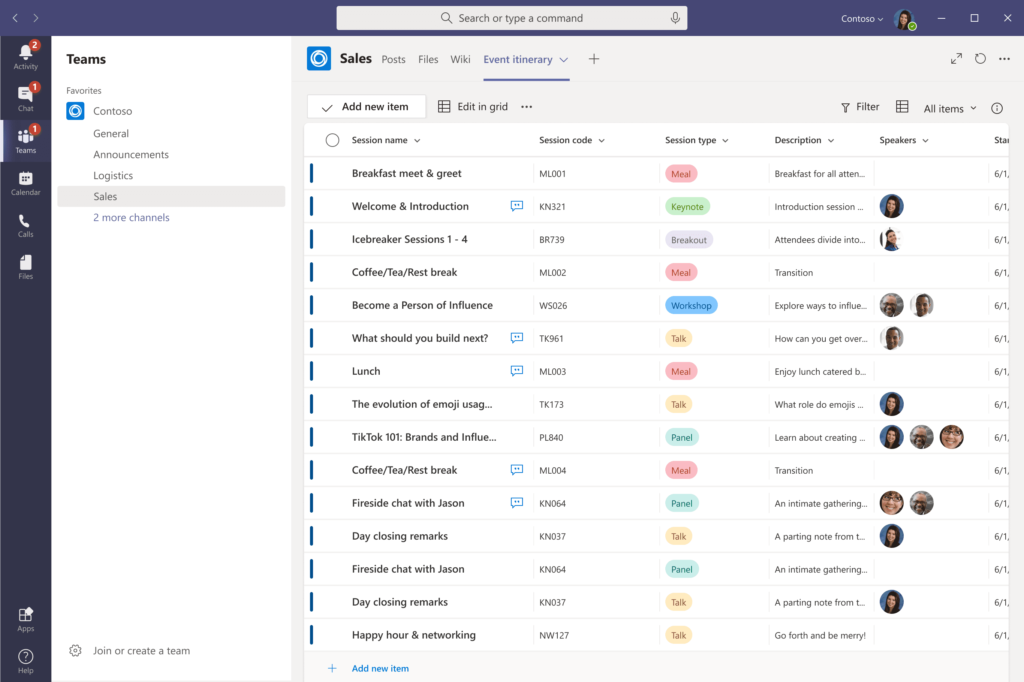
Here’s where the real magic happens. With Microsoft Lists now natively integrated into Teams, you can manage data and collaborate on it without context switching.
✨ No more “where was that list again?”
✨ No more juggling browser tabs and chat threads.
✨ No more asking “is this the latest version?”
Instead, your list lives inside the Teams channel. Conversations and context live together with the data. It’s beautifully chaotic in a structured kind of way.
Need a structured approval flow for onboarding equipment?
Need to track event attendees and assign follow-ups?
Need a list of action items that actually stays in sight?
Now you can do it all in Teams and make it look good, too.
🚀 Templates, Views & Smart Rules
Microsoft Lists comes with pre-built templates for common use cases like issue tracking, content scheduling, or asset management. That means less time building from scratch, and more time focusing on what matters.
And once your list is live, you can:
- Highlight priority items with rules and conditional formatting
- Get reminders when deadlines approach
- Create custom views for different teams
- Use filters to show just the things you care about
It’s like Outlook tasks, Excel spreadsheets, and Power BI got together and formed a productivity alliance. 💡
📱 Mobile App… Still on the Horizon
Let’s be honest: we want this on mobile. Now.
Microsoft did announce a dedicated Microsoft Lists app for iOS and Android, but as of now, it’s not in the app stores yet.
But hey, if we’ve learned anything from the Teams mobile app, then that it’s worth the wait. I expect we’ll be managing our lists on-the-go very soon.
In the meantime, Lists can be accessed via browser and Teams, and that’s already a huge win.
📘 Bonus Tip: Grab the Microsoft Lists Look Book
If you’re still not sure where to start, or you just love drooling over clean UX mockups (🙋♂️), check out the official Microsoft Lists Look Book. It’s packed with inspiration, screenshots, and best practices to make your list-building journey more awesome from day one.
💬 Final Thoughts from Mr. Microsoft
Microsoft Lists may not sound sexy on paper. But in practice, it’s a game changer for structured collaboration. Whether you’re managing a team, tracking internal processes, or building lightweight apps without code. This tool fits right into your flow.
And let’s face it: half the battle in today’s digital workday is just keeping track of all the stuff we said we’d do. 😅
Now, you can organize, automate, and collaborate without leaving Microsoft Teams. That’s the kind of productivity win I’ll always celebrate.
👉 Want More?
Check out more Microsoft Teams tips right here on zabu.cloud. Because geeky productivity is the best kind.
Stay clever. Stay curious.
Your Mr. Microsoft,
Uwe Zabel
🖼️ Images & sources: microsoft.com / lookbook.microsoft.com
💬 Tell me how you’re using Microsoft Lists! Drop a comment or tag me on LinkedIn.

What do you think?