

Never Miss a Call in Microsoft Teams Again
📅 Originally posted: 10.09.2019 | Updated for 2025
Let’s be honest: if you’ve ever ripped your headset off to grab a coffee, only to come back and see you missed a Teams call, you’re not alone. 😅 It’s a little digital tragedy many of us know too well.
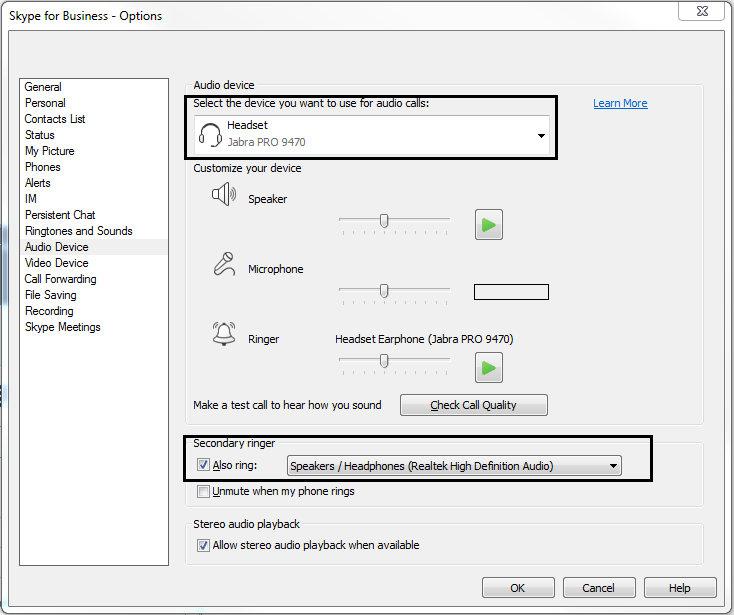
Back in the good old Skype for Business days, we had a handy little feature: the secondary ringer. You could set your PC speakers to chime even if your headset was plugged in, giving you the freedom to roam without missing a ping. When Microsoft Teams took over, that feature went missing for a while. But now it’s back, and better than ever.
Let’s talk about how to make Microsoft Teams ring on both your headset AND your speakers, so you can sip your espresso in peace without losing a call.
The Headset-Only Era: Why Teams users struggled
For nearly two years, I helped migrate dozens of enterprise users from Skype for Business to Microsoft Teams. While most users embraced the new collaboration-centric UI, one tiny but mighty feature was sorely missed: the dual-ring capability.
In Teams, incoming calls initially rang only through the default device—which, for most people, was their headset. That’s great when it’s on your ears… but not so great when it’s on the desk, buried under paperwork, or still charging in the docking station. No extra chime from your PC speakers meant missed calls and missed opportunities.
We all felt it. I felt it. And finally Microsoft listened.
Roadmap ID 51089: The Feature that fixed everything
📌 Straight from the Microsoft 365 Roadmap:
“Provides the capability to configure a second ringer for calling. This allows for headsets to be plugged in but still be able to hear an incoming call ring your device.”
Boom. There it was. The secondary ringer is now officially supported in Microsoft Teams—and it’s a game-changer.
You can now configure a second audio device (like your PC speakers) to ring in parallel with your headset. Meaning? No more missed calls while grabbing coffee, stretching your legs, or catching up with a colleague in the hallway.
How to configure a second ringer in Microsoft Teams
Here’s how to set it up in under 60 seconds:
1️⃣ Open Microsoft Teams.
2️⃣ Click on your profile picture > Settings.
3️⃣ Navigate to Devices.
4️⃣ Under the “Audio devices” section, you’ll see Secondary ringer.
5️⃣ Choose your preferred secondary device (e.g., PC speakers, monitor audio, or external soundbar).
6️⃣ Done. Just like that, you’re back in the loop.
🔔 Pro tip: If you’re using a docking station with built-in audio output, you can also use that as your second ringer for added flexibility.

Finding the little things that make a big difference
In a hybrid world where we juggle Teams calls, video meetings, and coffee runs, every ping counts. Having a secondary ringer isn’t just a nice-to-have—it’s a productivity booster.
Missed calls lead to missed meetings. Missed meetings lead to delays. Delays? Well, those lead to unhappy clients. Not on my watch. 💼
This update may seem minor, but it’s a great reminder that productivity lives in the details. Microsoft Teams continues to evolve—and I’m here to make sure you’re getting the most out of it.
WHY THIS MATTERS
✅ No more missed Teams calls when your headset’s off
✅ Secondary ringer lets your PC speakers join the action
✅ Available now in Microsoft Teams via Settings > Devices
✅ Simple change = measurable impact on responsiveness
Stay clever. Stay responsible. Stay scalable.
Your Mr. Microsoft,
Uwe Zabel
🚀 Curious about Microsoft Teams hacks, telephony tips, and unusual-but-awesome use cases? Check out the full Microsoft Teams section on zabu.cloud. Or drop me a note if there’s a specific topic you’d love to see next.
What do you think?